
Improvement
Reuse rooms from a previous inspection in FieldSeen

Before you start
- Plan
- Free and Professional
- Works on
- Desktop and phone
- You’ll need
- A completed inspection for the same property and scope, plus a connection
Start your next visit with a room list you have already used. FieldSeen lets you reuse room names and their order from a previous completed inspection, adjust the list for this visit, and capture new evidence without rebuilding every room name.
Room reuse is available on Free and Professional for staff inspections on desktop and phone. You need permission to start the inspection, an internet connection during setup, and a completed source for the same property and exact unit, or another property-wide inspection. Archived completed history can also be used.
This walkthrough uses the current interface with entirely fictional properties, inspections, and room names. It shows the setup and the new, undocumented rooms that result. Previous conditions, notes, and photos are not copied.
Choose the source on desktop
4 steps Desktop
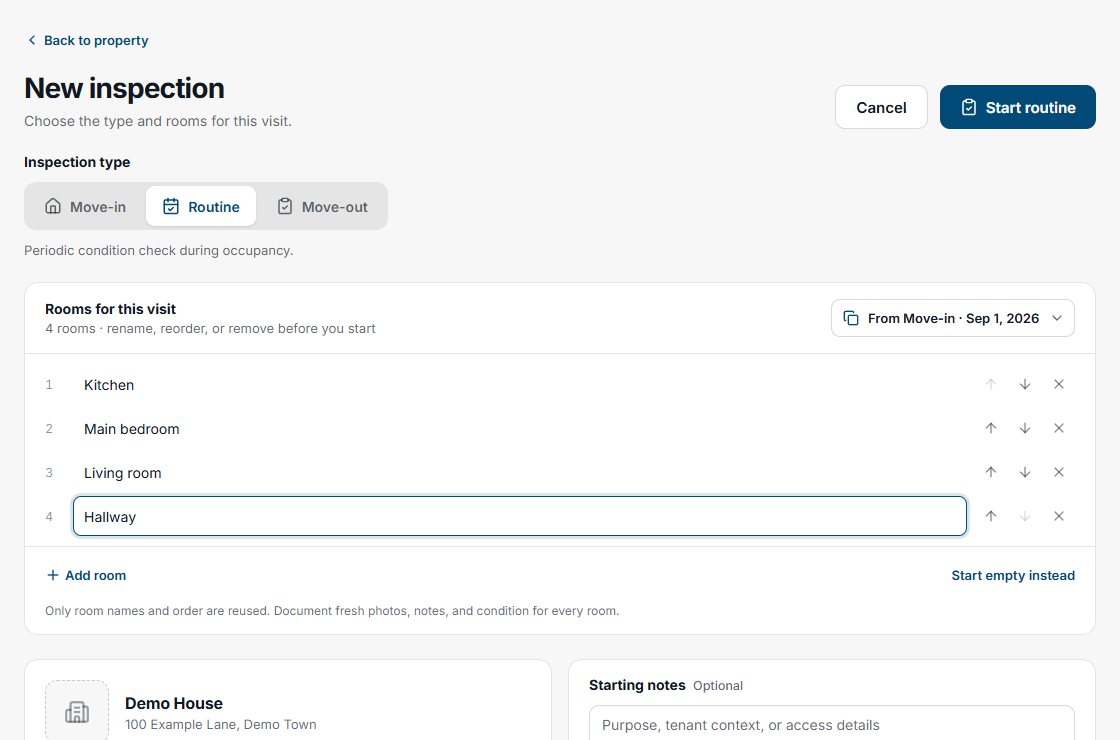
- Open the property and select Start new inspection. Choose the unit or property-wide scope where applicable.
- In New inspection, choose Move-in, Routine, or Move-out.
- Review Rooms for this visit. Check the source type and date in the room-source selector, labelled Rooms from for assistive technology.
- Choose another compatible completed inspection from that selector if needed, then review the names and their order.
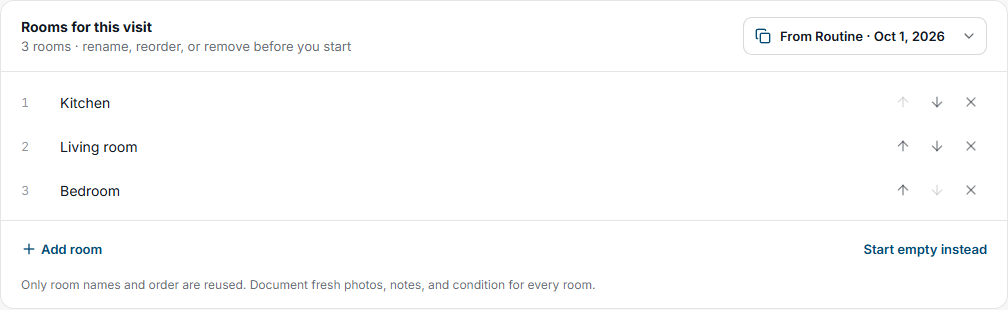
Desktop suggests the latest compatible completed inspection. For a move-out, it prefers the latest compatible move-in when one exists. Always check the selected date and type; you can choose another source. A room list is a starting point for this visit, not a finding about the property's current condition.
Adjust the list for this visit
4 steps Desktop
- Edit a room's name directly in its field.
- Use the up and down arrow controls to change the order, or the remove control to leave a room out of the new list.
- Select Add room if the visit needs another area, and give it a useful name.
- Check the finished list, then select the start control for your chosen type, such as Start routine.
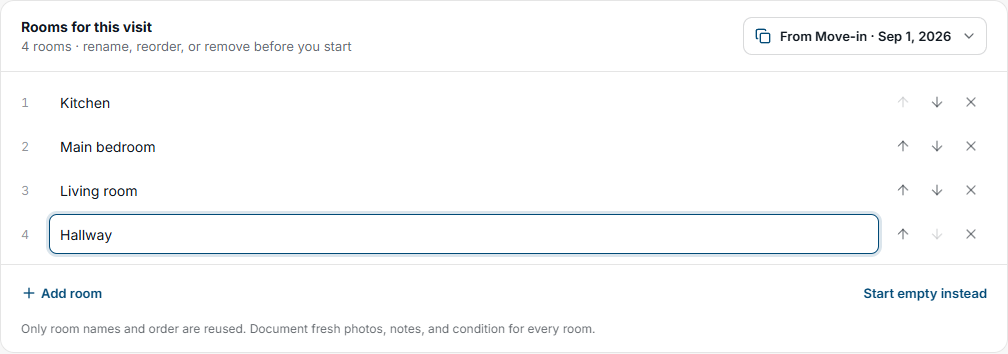
In the example, Bedroom becomes Main bedroom, moves above Living room, and Hallway is added. These edits affect the new inspection's list. They do not rename rooms or change the report in the previous completed inspection.
Reuse rooms on your phone
5 steps Phone
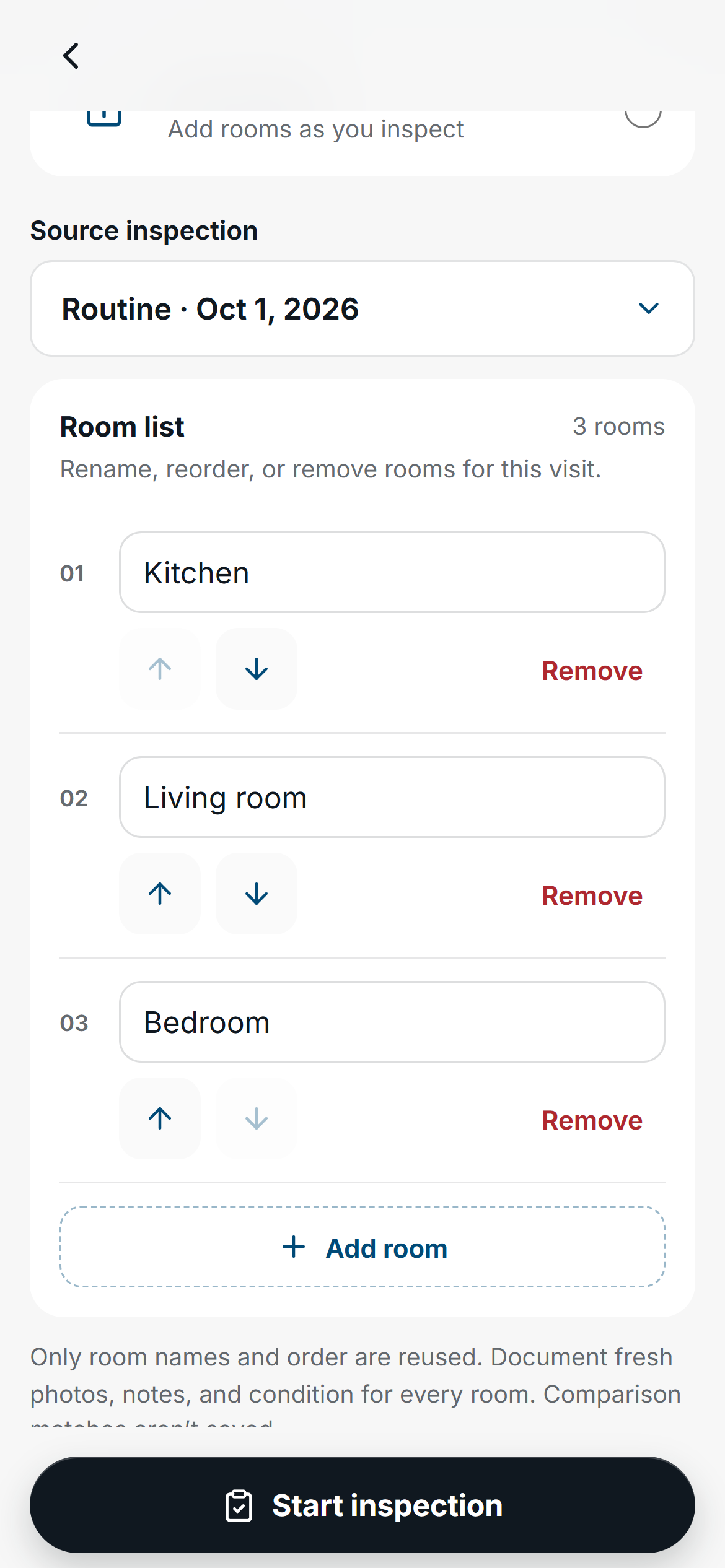
- Open the property, select Start new inspection, and choose the scope and inspection type.
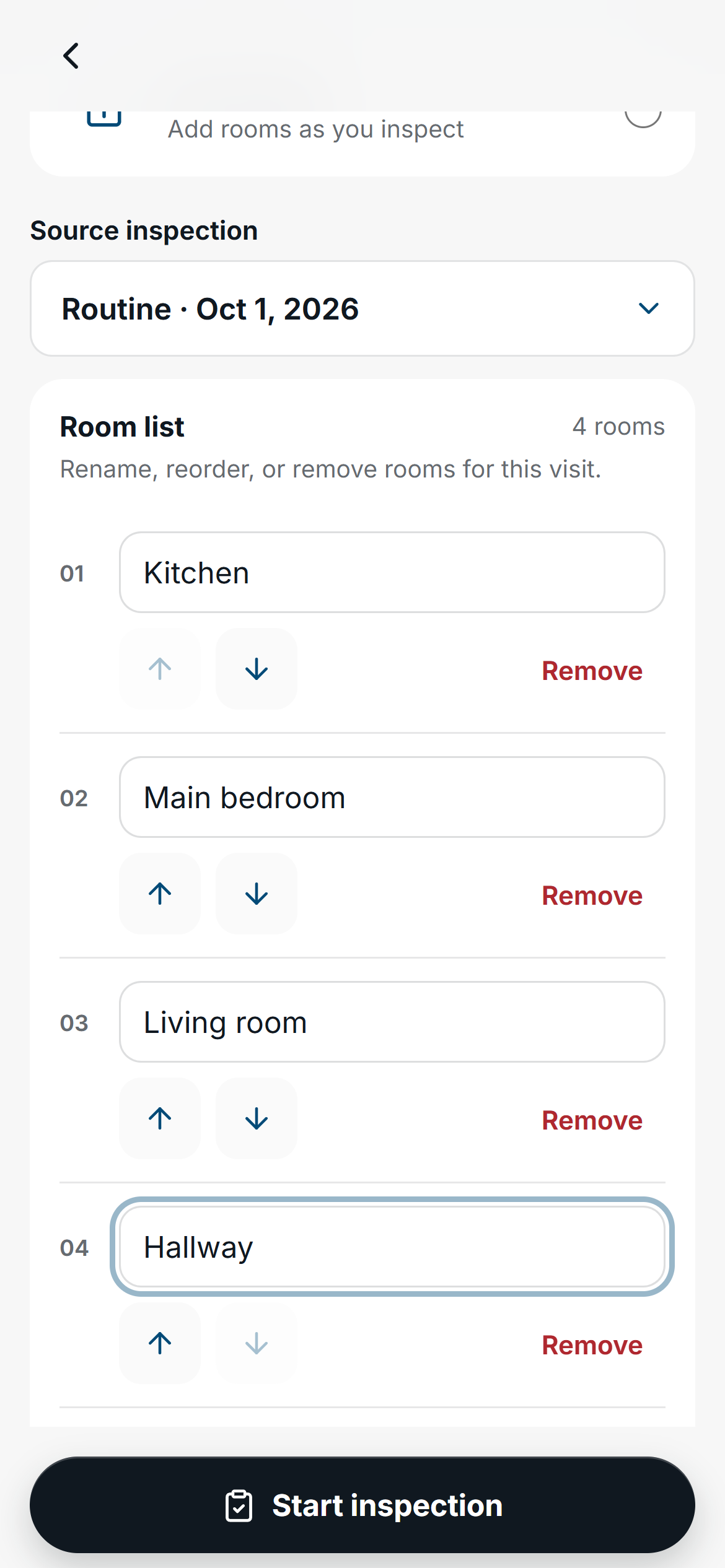
- Select Reuse rooms under the room setup choices. Phone setup otherwise starts empty.
- Check the Source inspection type and date. Choose a different compatible source if needed.
- Review the Room list, edit the names, use the arrow controls to reorder, and use Remove or Add room as needed.
- Tap Start inspection after checking the list.
Document the new visit from scratch
After you start, FieldSeen creates new rooms with the reviewed names and order. They begin undocumented, without the earlier visit's ratings, notes, photos, or completion state. The Not inspectedlabels in the room list show that these rooms still need this visit's documentation. They do not carry over a condition rating from the source.
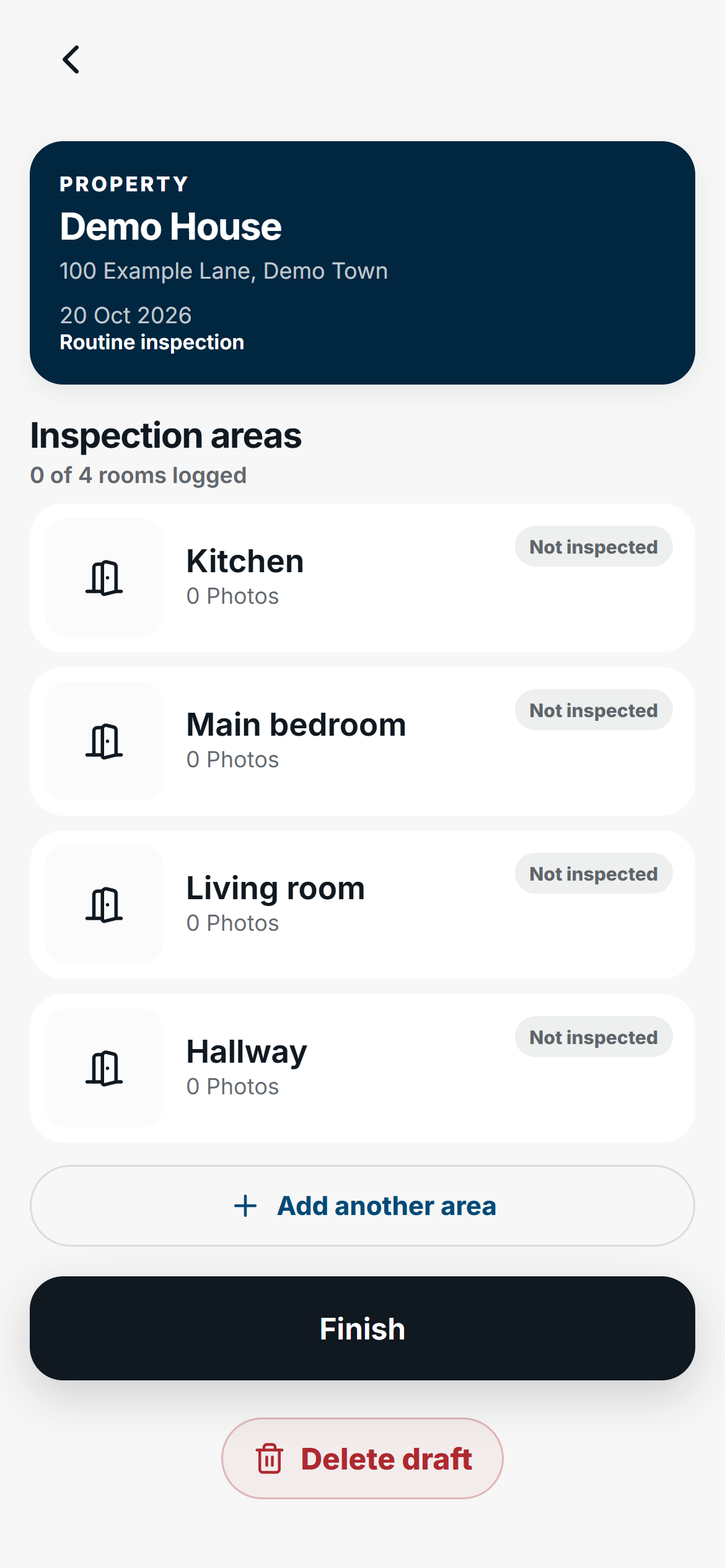
Open each room, choose its current condition, add notes and useful photos, and save its details. The normal documentation and completion checks still apply. Reusing a name does not complete a room, carry over the previous inspector's findings, or establish that the condition is unchanged.
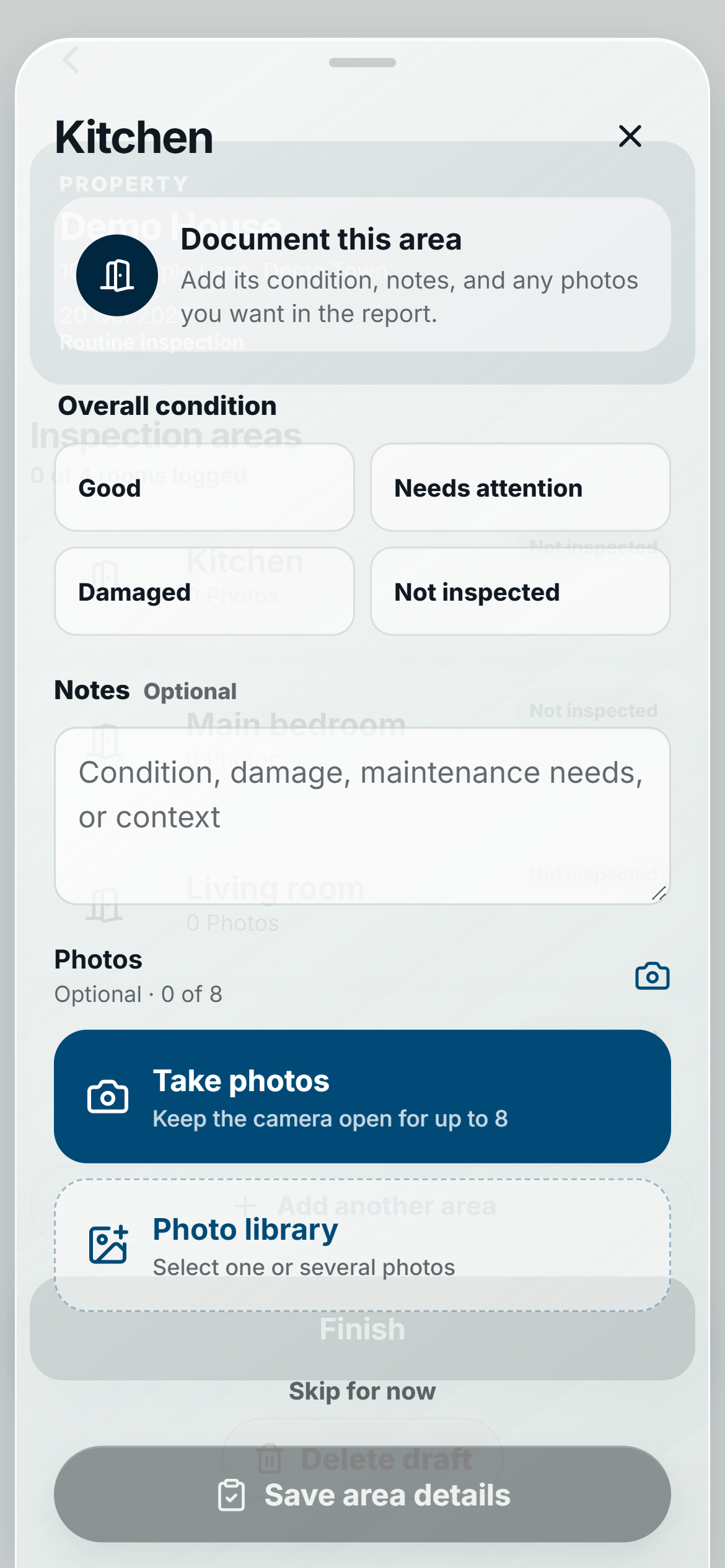
Consistent names can help you review visits later, but room reuse does not save permanent comparison matches. Check those pairings when you use side-by-side inspection comparison. Our move-in photo guide can help you capture useful room context and detail for the new record.
Use an empty list or a checklist when appropriate
If the previous layout does not suit the visit, choose Start empty in the desktop source selector or Start empty instead below the list. On your phone, select Start empty. You can then add rooms during the inspection. If there is no compatible completed source, start empty rather than borrowing another property's or unit's rooms.
An enabled checklist supplies its own rooms instead of showing room reuse. To use a previous room list for that visit, select Skip for this visit on desktop or Skip checklist for this visit on your phone, then choose the room source. Room reuse does not copy checklist items. For reusable item prompts with OK, Issue, and N/A answers, see inspection checklists.
Loading the source and starting the new draft need a connection. Once the inspection is prepared on your device, you can document the new rooms using FieldSeen's staff offline workflow. Reconnect to synchronize and finalize the inspection. If a draft is already in progress, use the existing resume or discard choices; choosing a source does not silently overwrite it.
Find the feature in the Reuse rooms overview. For your next staff visit, check the source date and scope, adjust the names, and record fresh evidence in the new inspection.