
Features
Explore what FieldSeen can do.
Pick a group, then a feature, to see it. Everything here is in the product today.
For you and your team
Every property, unit, and owner in one place.
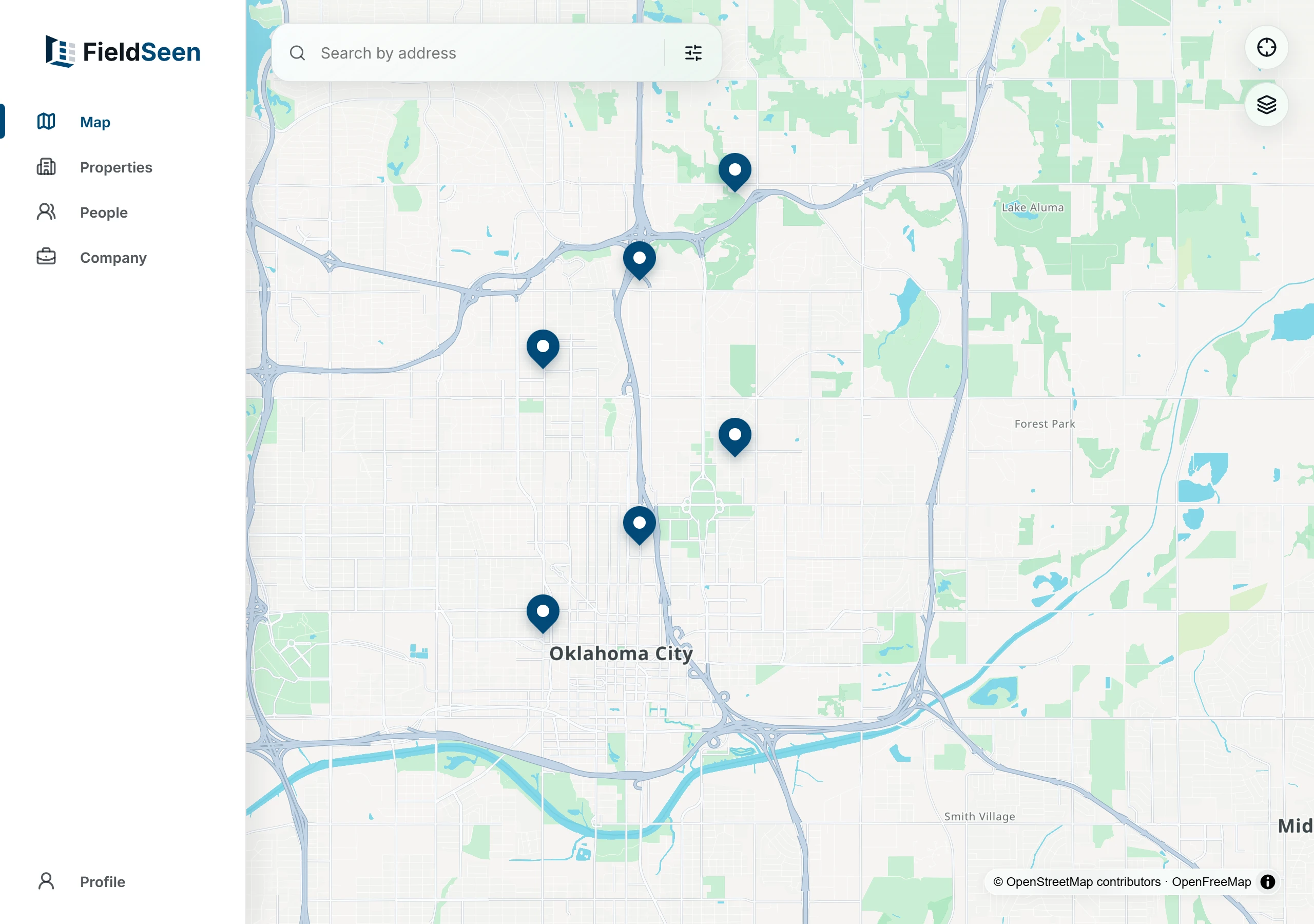
Map of your portfolio
See every property you manage on one map, and find the one you need.
- Find any address. Type an address and FieldSeen finds it on the map.
- Nearby properties group up. Zoomed out, pins that are close together combine into one, so the map stays easy to read.
- Filter what you see. By owner, property type, or inspection status: not inspected, in progress, or done.
- Open a property from its pin. Tap a pin to open that property.
Fictional demo data. View full size
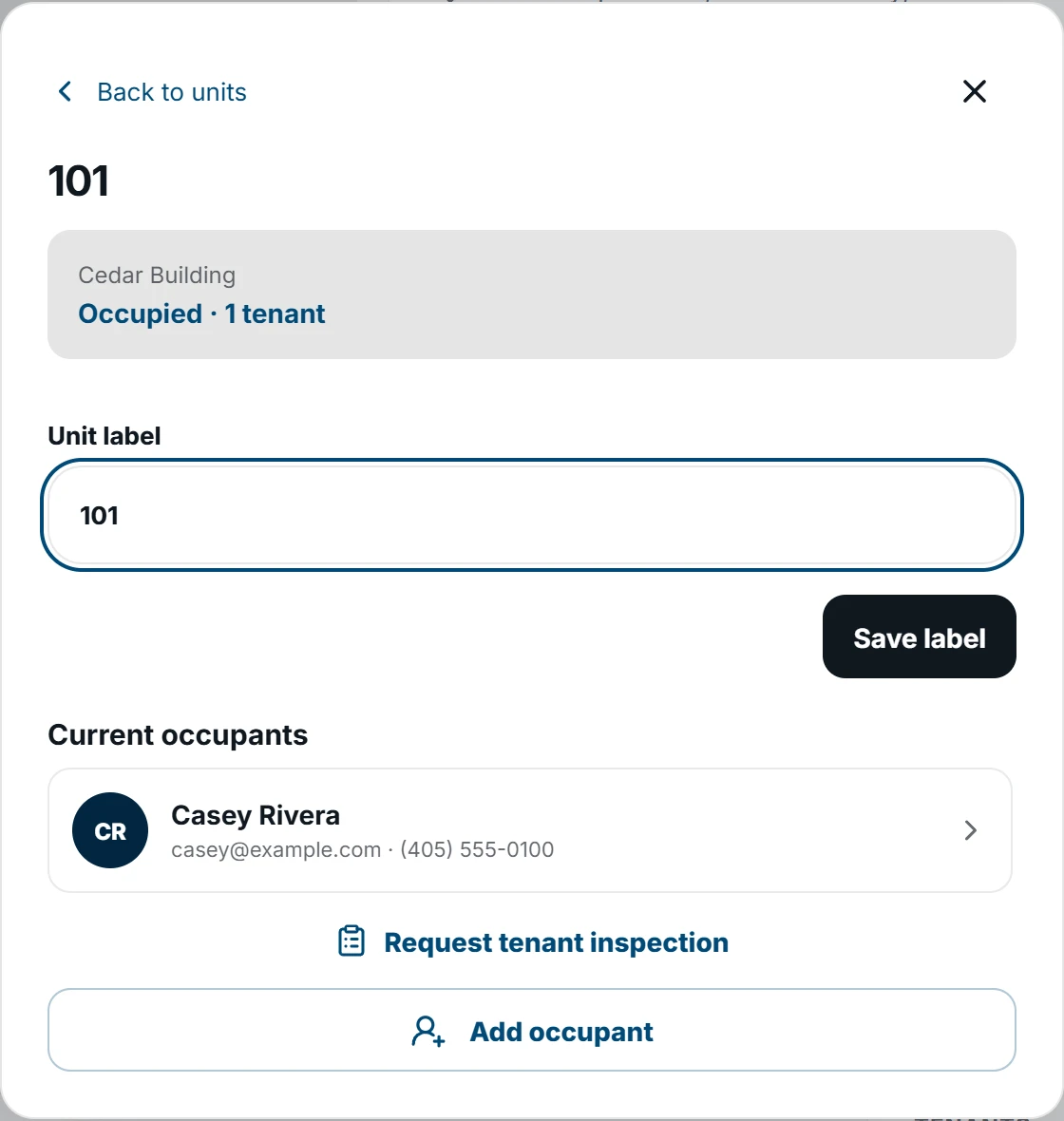
Buildings and units
Set up each property the way it’s really built, so every inspection is tied to the right unit.
- Pick the type. A single-family home, a building with several units, an apartment complex with more than one building, or condos you manage one by one.
- Name units your way. 101, Apt B, Upstairs, Garage unit, whatever you already use. You can rename them later.
- Buildings stay separate. In a complex, Cedar 101 and Willow 101 never get mixed up.
- Each unit has its own record. Its own tenants, its own inspections, and its own history.
Fictional demo data. View full size
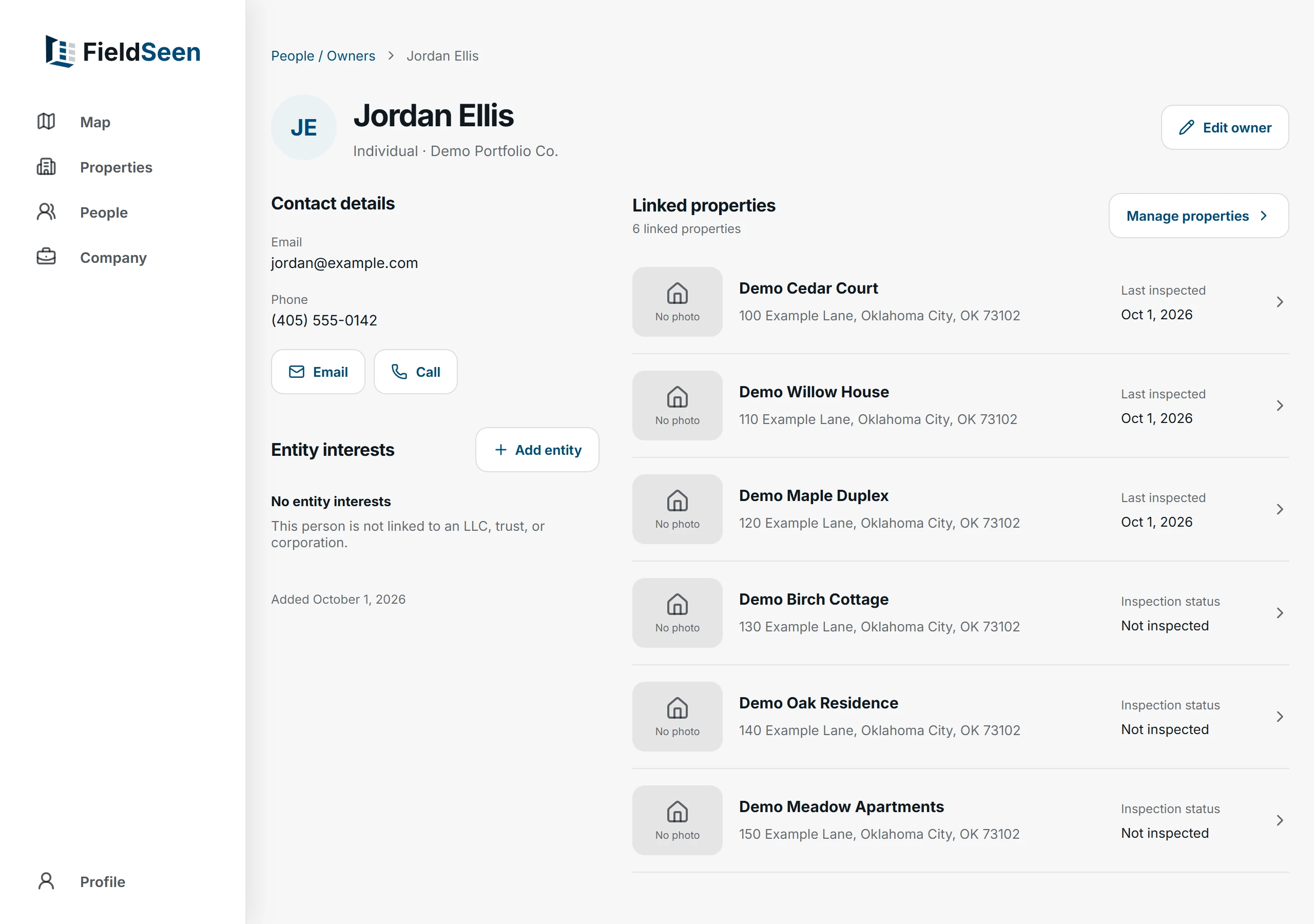
Owner directory
Keep every owner and the properties they own together, so you always know who to call.
- People or companies. An owner can be a person, an LLC, a trust, or a corporation.
- Who’s behind the company. Add the people behind an LLC or trust, their role, their ownership percentage, and who the main contact is.
- Their properties in one place. Link properties to an owner and see them all together.
- Find owners fast. Search your owners, or filter the map to one owner’s properties.
Fictional demo data. View full size
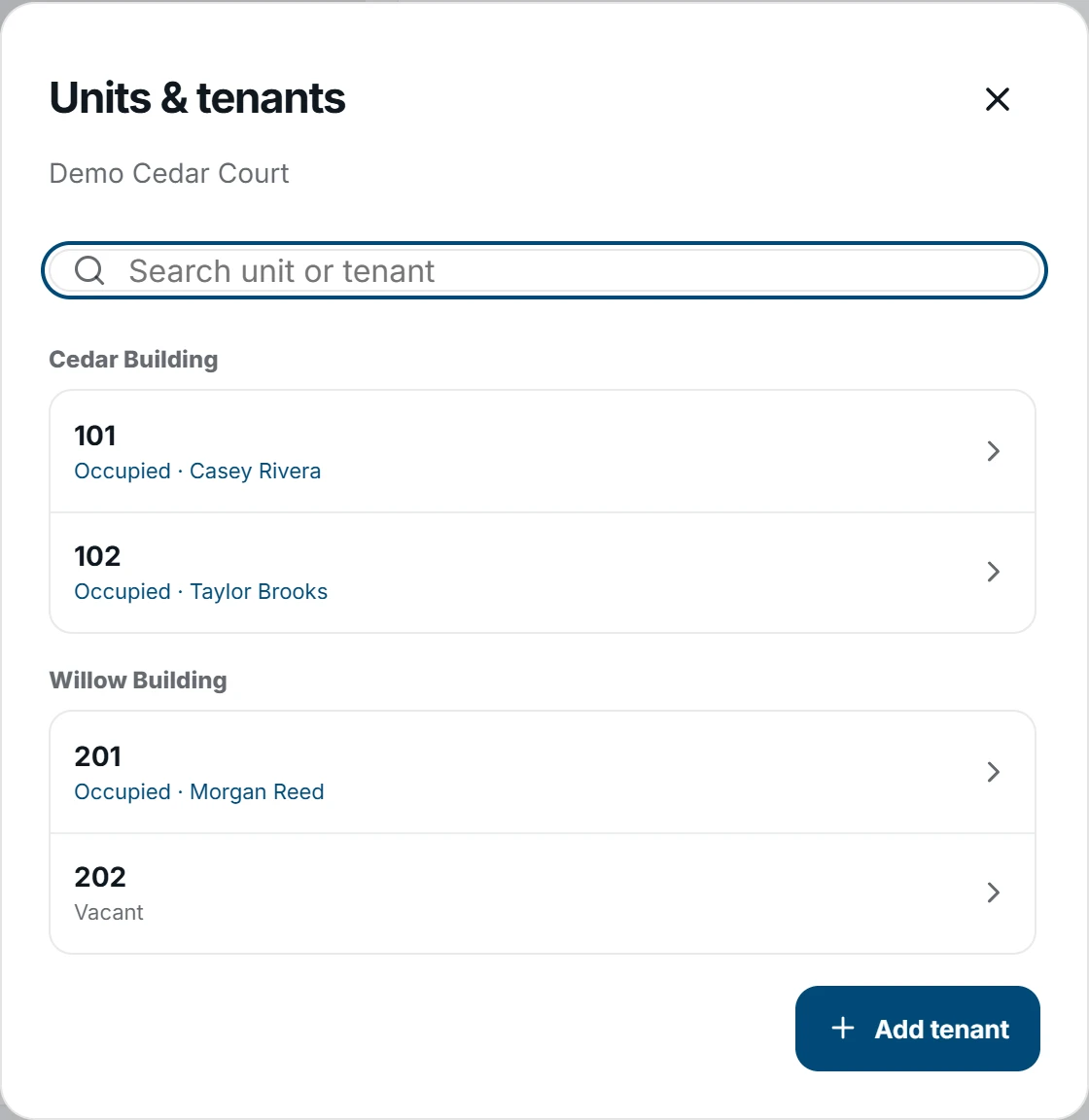
Tenants and occupancy
Record who lives in each unit, so every inspection is tied to the right people.
- Who lives where. Add each tenant’s name, email, and phone to their unit.
- Occupied or vacant at a glance. Each property shows how many units are occupied and how many are vacant.
- Find anyone fast. Search by unit number or tenant name.
- No tenant account needed. Tenants never have to sign up or download anything.
Fictional demo data. View full size
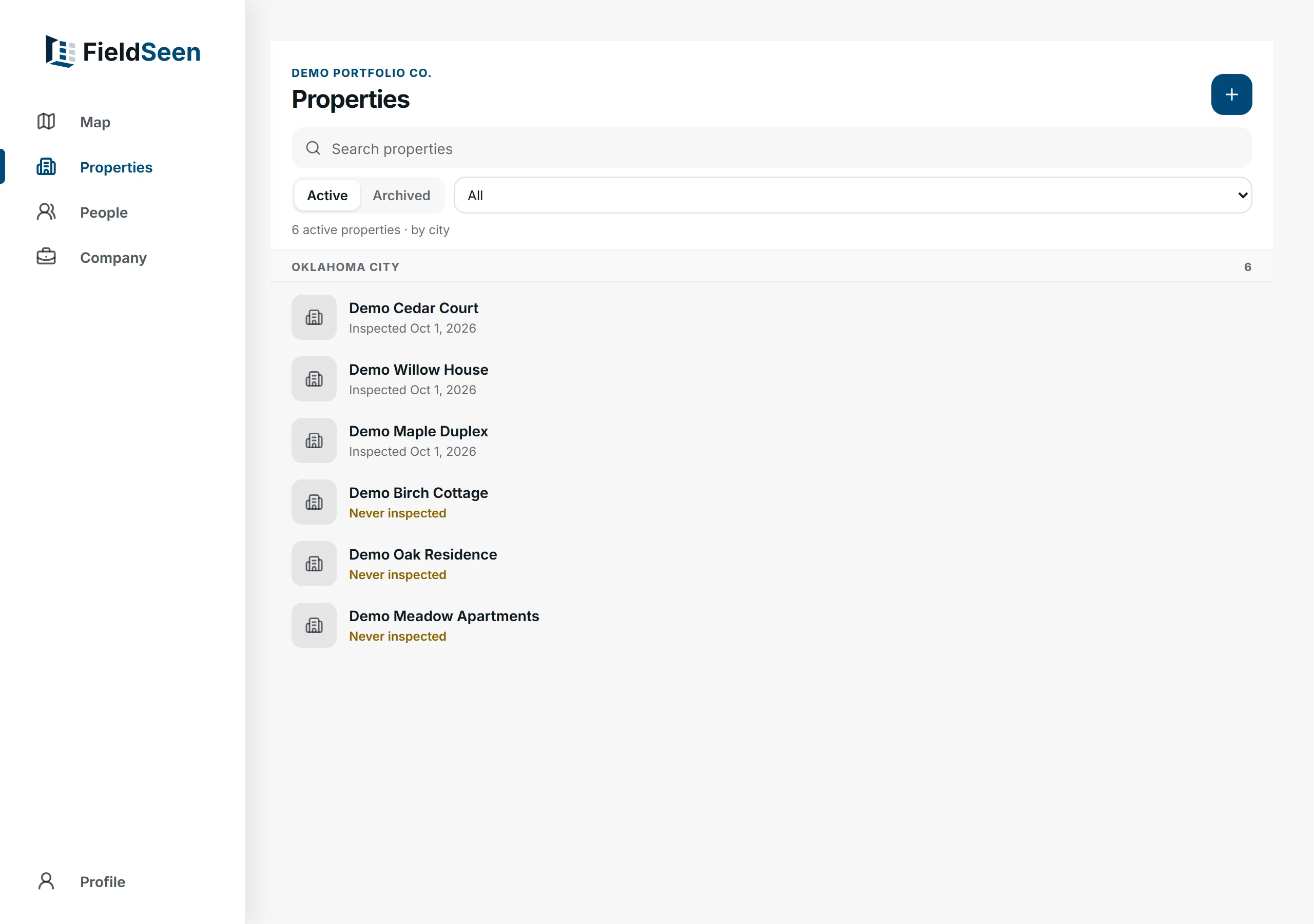
We set it up for you
Founding offerSkip typing in your properties one by one. Send what you already have and FieldSeen’s founder sets it up.
- Send any list. A spreadsheet, an export from your current software, or a list in an email.
- Ready when you start. Your properties, buildings, and units are already in place when you sign in.
- A real person helps. An optional setup call and a direct line to the founder.
- Part of the founding offer. Included for founding customers, open through December 31, 2026.
Example prepared portfolio. Fictional demo data. View full size
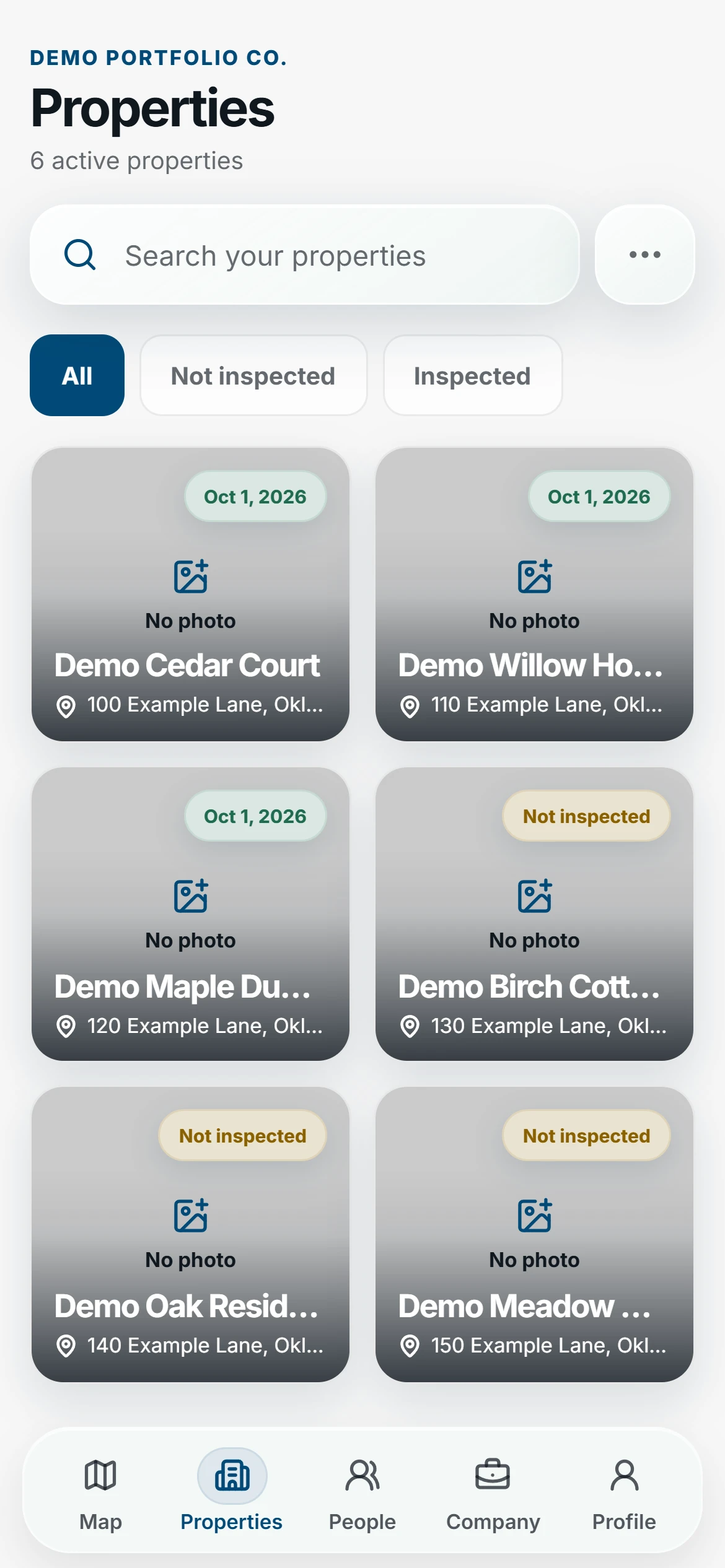
Phone and desktop
Do the walk-through on your phone and the paperwork at your desk, all in one account.
- Inspect on your phone. Room by room, with photos and notes, in the FieldSeen app or your phone’s browser.
- Manage at your desk. Review reports and keep properties, owners, and tenants up to date on a bigger screen.
- Same account everywhere. What you save on one shows up on the other once you’re connected.
- Nothing to install on a computer. Desktop works in your web browser.
Fictional demo data. View full size
Move-in, routine, and move-out, room by room.
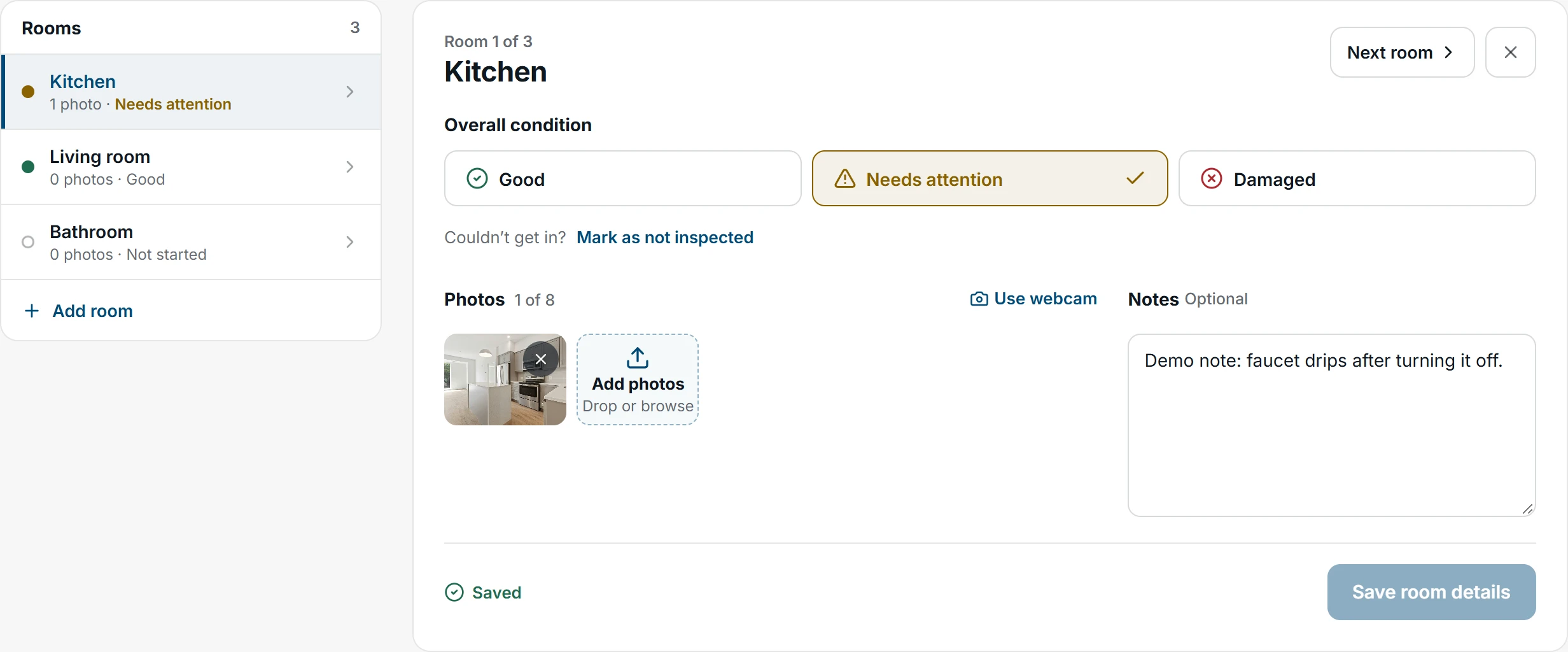
Room-by-room capture
Walk the unit one room at a time and record what you see, so nothing gets missed.
- Rate each room. Good, Needs attention, or Damaged. Or mark a room Not inspected.
- Notes and photos. Write what you see and add up to 8 photos per room.
- Rooms your way. Tap a common room like Kitchen or Bedroom, or name any space you need: garage, patio, laundry.
- Dated as you go. Each room records when it was documented, and photos are timestamped in the report.
Fictional demo data. View full size
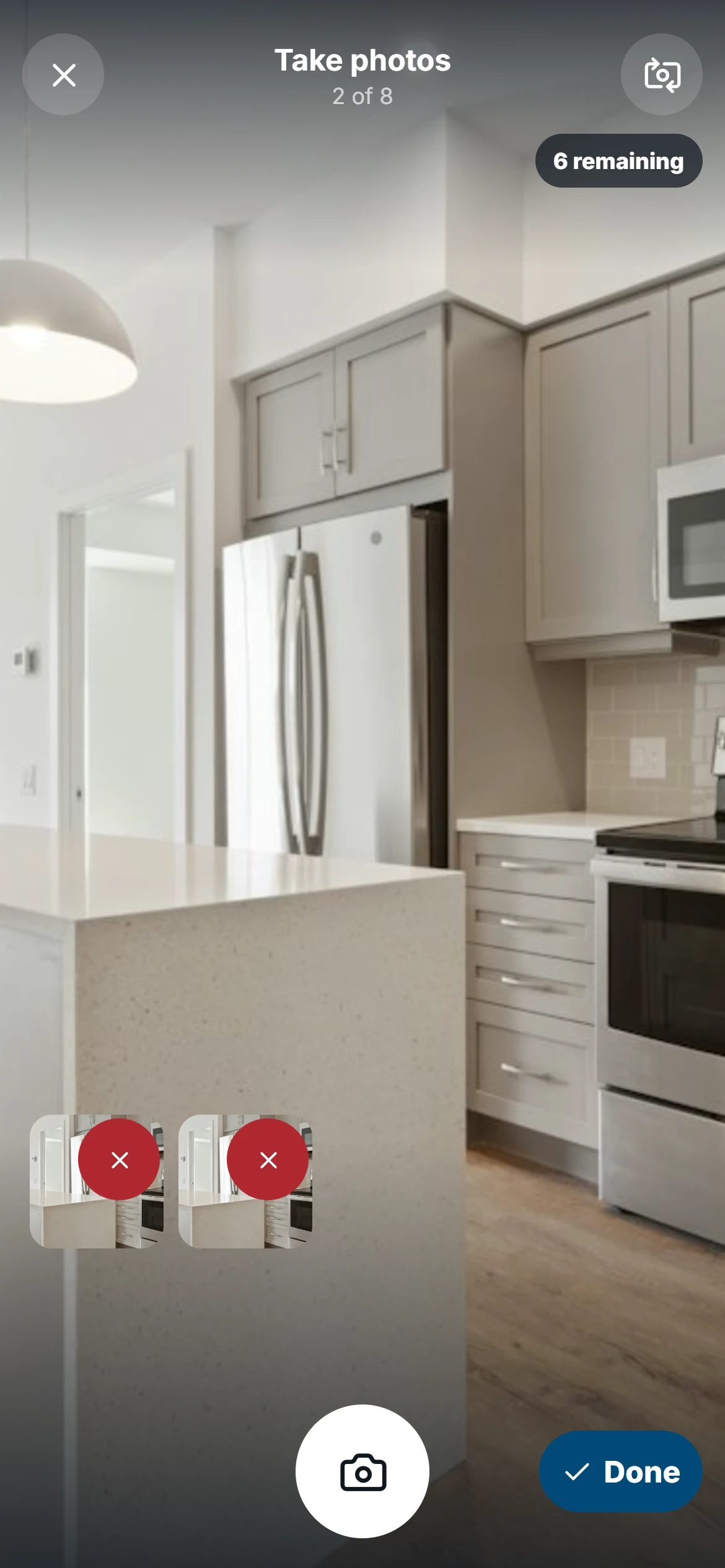
Keep the camera open
Take every photo a room needs without bouncing in and out of the camera.
- Shoot in a row. Take one photo after another. Each one is added to the room you’re in.
- See what you have. Small previews show the photos you’ve taken and how many spots are left.
- Up to 8 per room. The camera tells you when the room is full.
- Done when you are. Tap Done to go back to the room with your photos attached.
Fictional demo data. View full size
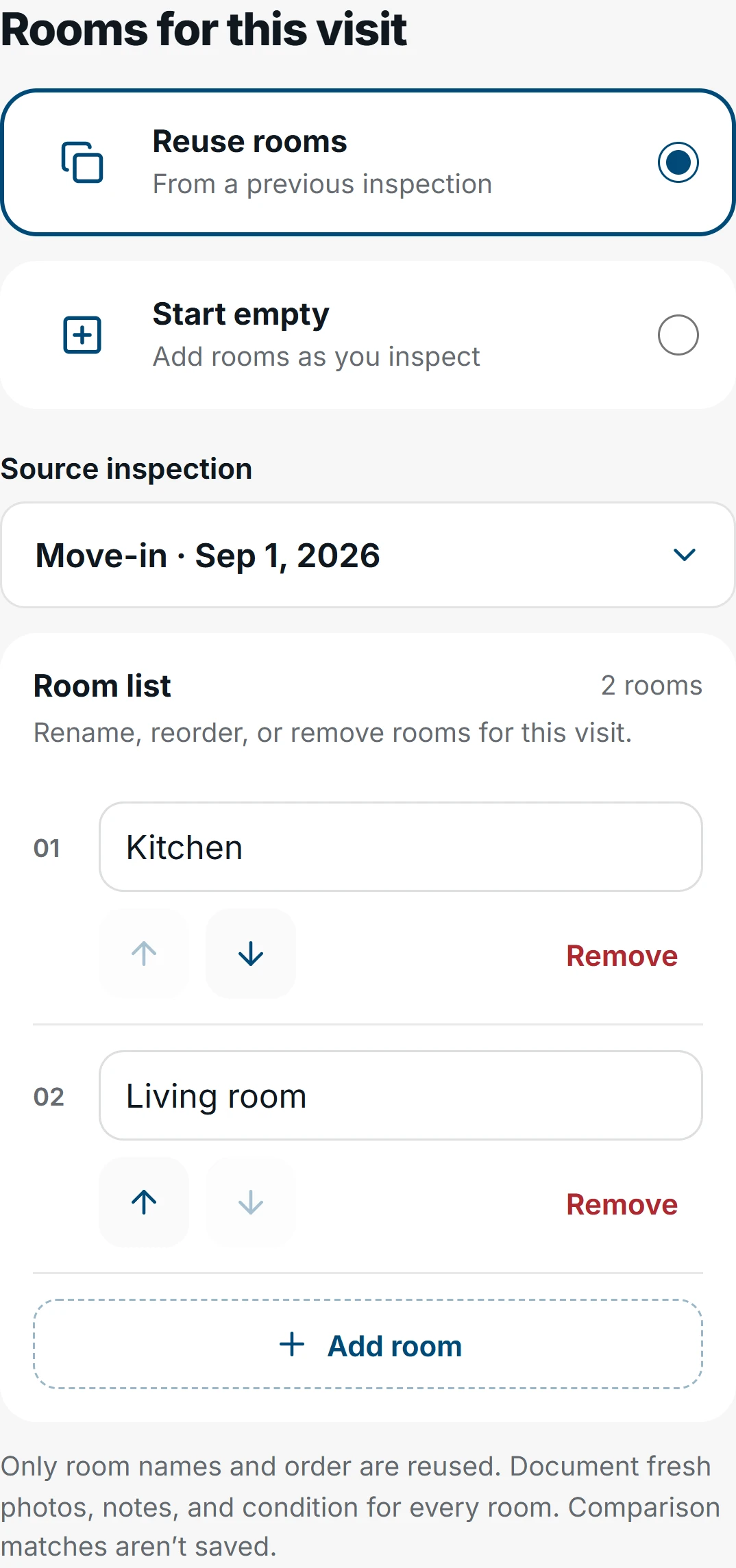
Reuse rooms
Start a new inspection with the same rooms as last time, without typing them again.
- Pick a past visit. FieldSeen suggests the latest completed inspection for that unit. You can choose a different one.
- Adjust the list. Rename, reorder, remove, or add rooms before you start.
- Fresh every time. Only the room names carry over. Condition, notes, and photos are captured new on every visit.
- Or start empty. Skip it and build the room list from scratch.
Fictional demo data. View full size
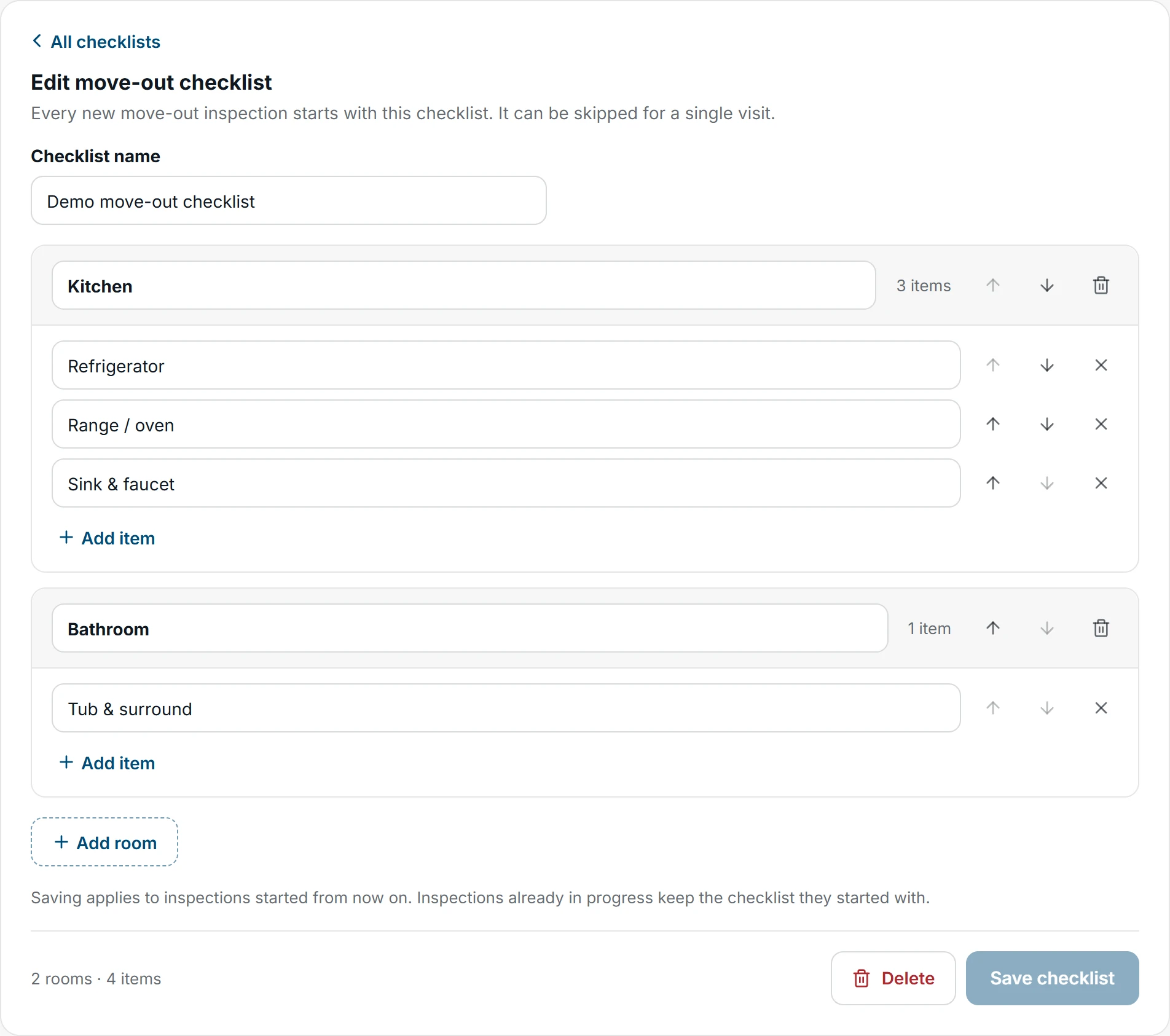
Inspection checklists
Give every inspector the same list of things to check, so nothing depends on memory.
- One per inspection type. Separate checklists for move-in, routine, and move-out.
- Simple answers. Each item gets OK, Issue, or N/A. An issue needs a short note.
- Nothing gets skipped. An inspection can’t be finished until every item in every inspected room has an answer.
- Right in the report. The PDF shows each room’s answers and lists every issue together on one page.
Fictional demo data. View full size
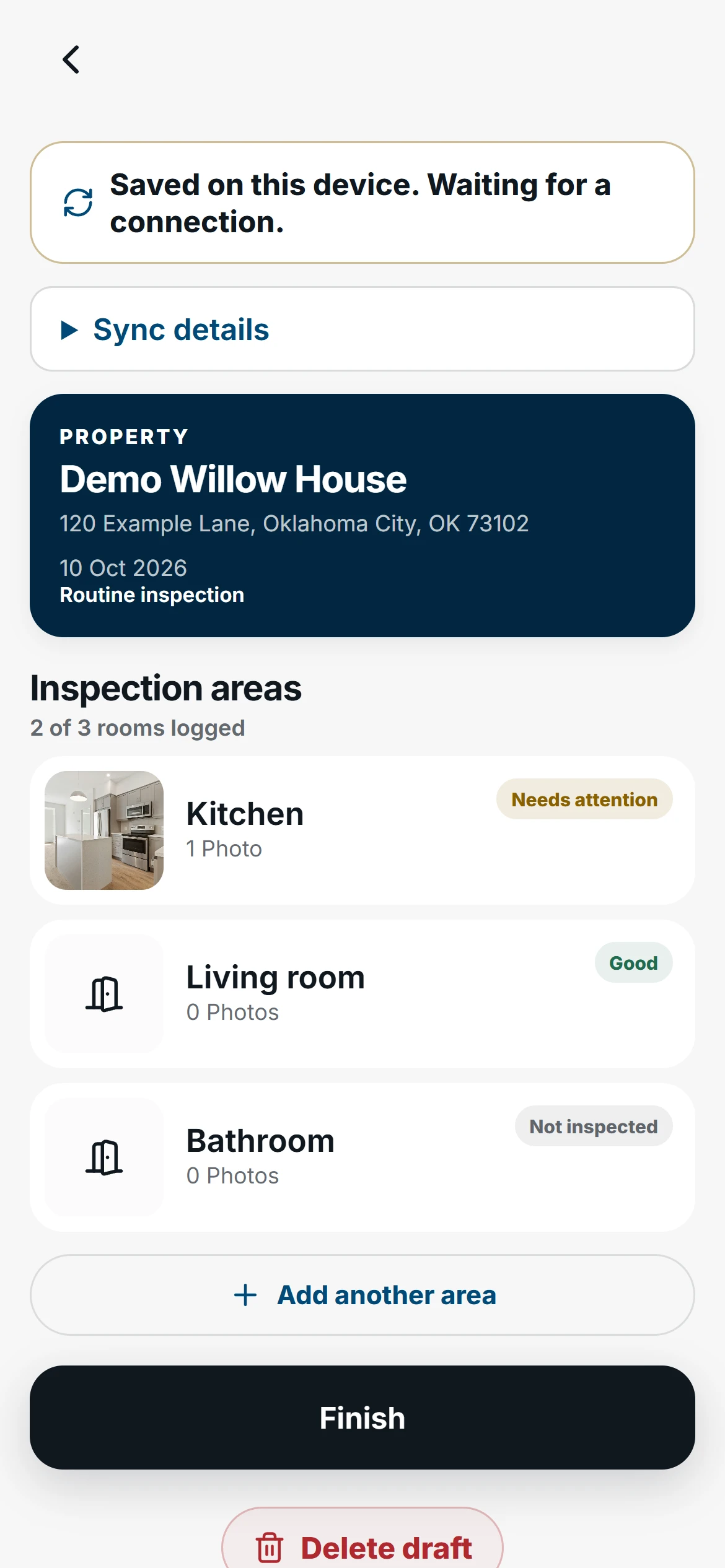
Works without service
No signal in the basement? Keep working, and FieldSeen catches up when you’re back online.
- Start while connected. Open the inspection before you head somewhere without service.
- Keep capturing. Condition, notes, and photos save on your device as you go.
- Uploads when you’re back. Once you reconnect, your changes upload on their own.
- Always know where it stands. The inspection shows whether changes are saved on your device or uploaded.
Fictional demo data. View full size
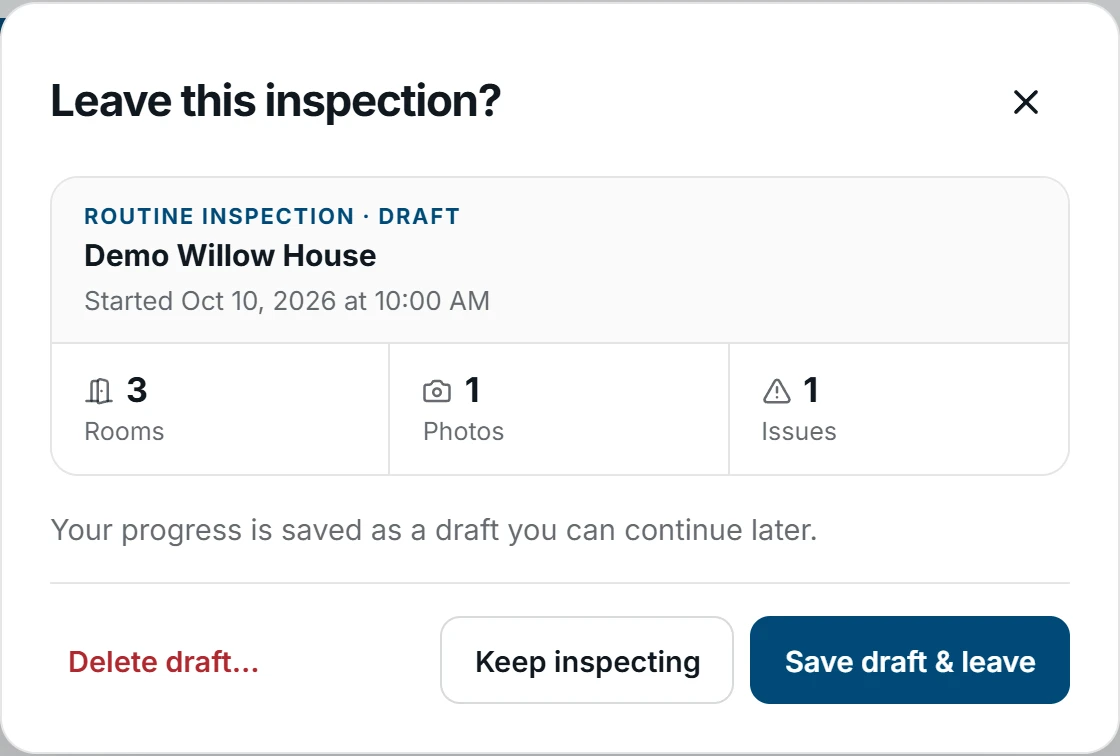
Drafts that wait for you
Stop partway through and pick it up later, right where you left off.
- Saved as you go. Every room you finish is kept in the draft.
- 30 days to finish. A draft stays open for 30 days from the day it was started.
- One device at a time. A draft is open on one device at a time, so no one overwrites anyone else’s work.
- Hand it off. On a team, a teammate can take over a draft and finish it.
Fictional demo data. View full size
Signatures and tenant acknowledgment.
Inspector signature
Put your name on the inspection before you finish, so the report shows who did it.
- Sign as the last step. After the last room, a Signatures step comes right before you finish.
- Name filled in for you. Your name comes from your profile. Draw your signature with a finger or mouse.
- Fix it before you finish. Clear and redraw as often as you like until the inspection is done.
- On the report. The PDF ends with a Signatures page showing who signed, and the date and time.
Tenant signs on your device
Tenant is there with you? Hand them your phone and get their signature on the spot.
- Clear wording. The tenant reads a short statement: signing confirms they received the report, not that they agree with every item.
- Name and signature. They type their full name and draw their signature.
- Room for their side. They can add a comment, and it prints under their signature.
- More than one tenant. Add up to 6 tenants on the same inspection.
Emailed signing link
Tenant not there? Send them a link and they sign on their own phone.
- Nothing to download. The tenant opens the link without an account or app.
- They see the report first. The finished report opens before they sign, so they know what they’re signing for.
- Sign or decline. They can sign and add a comment, or choose to decline.
- Good for 14 days. The link works once and expires after 14 days. You can resend or cancel it.
Not present or declined
When a signature isn’t possible, write down why, so the report tells the whole story.
- Pick a reason. Tenant not present, declined to sign, unreachable, unit vacant, or something else.
- Add a note. Explain in a sentence or two. A note is required when you choose something else.
- Dated and named. The report shows the reason, the date, and who recorded it.
- Ask again later. Owners and admins can still send a signing link after the inspection is finished.
A finished PDF the moment the inspection is done.
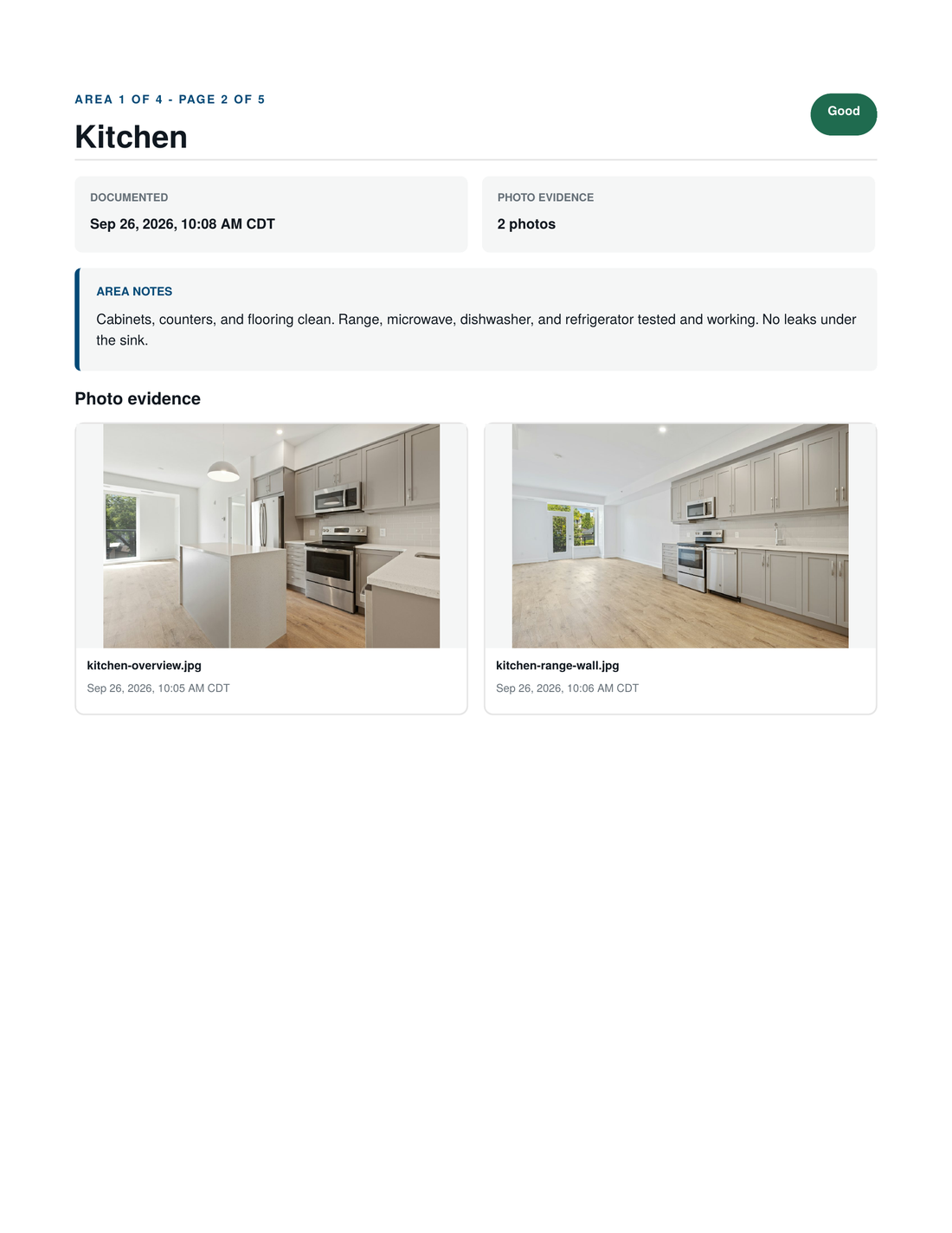
Professional PDF
Finish the inspection and the report is ready. No retyping notes or sorting photos afterward.
- Made for you. FieldSeen builds the PDF from what you captured. There’s nothing to put together.
- Every room. Each room’s condition, notes, and timestamped photos, in the order of your room list.
- Easy to scan. Checklist answers for each room, with every issue listed together on one page.
- Signed and dated. A Signatures page shows who signed and when, or why a tenant didn’t.
Your branding
ProfessionalPut your company’s name and logo on your reports, so they look like they came from you.
- Your logo. Upload it once and crop it to fit.
- Your company name. Shown at the top of every report.
- On emails too. Reports you send to owners carry your name and logo.
- Set it once. Every new report uses it automatically.
Send to the owner
ProfessionalSend the property owner the report from FieldSeen, without downloading and attaching it yourself.
- A private link. The owner gets an email with a secure link to the report.
- No account needed. They open it in their browser. Nothing to sign up for.
- Good for 7 days. The link expires 7 days after it’s sent.
- Send it again. Need to resend? You can send it again from the report.
Share or save anywhere
Get the report wherever it needs to go, straight from your phone or computer.
- Share from your phone. Use your phone’s share sheet to text it, email it, or save it to Files.
- Download on desktop. Save the PDF to your computer with one click.
- A clear file name. Named with the property and date, so it’s easy to find later.
- Same report everywhere. The file you share is the same finished report you see in FieldSeen.
History that’s ready when a question comes up.
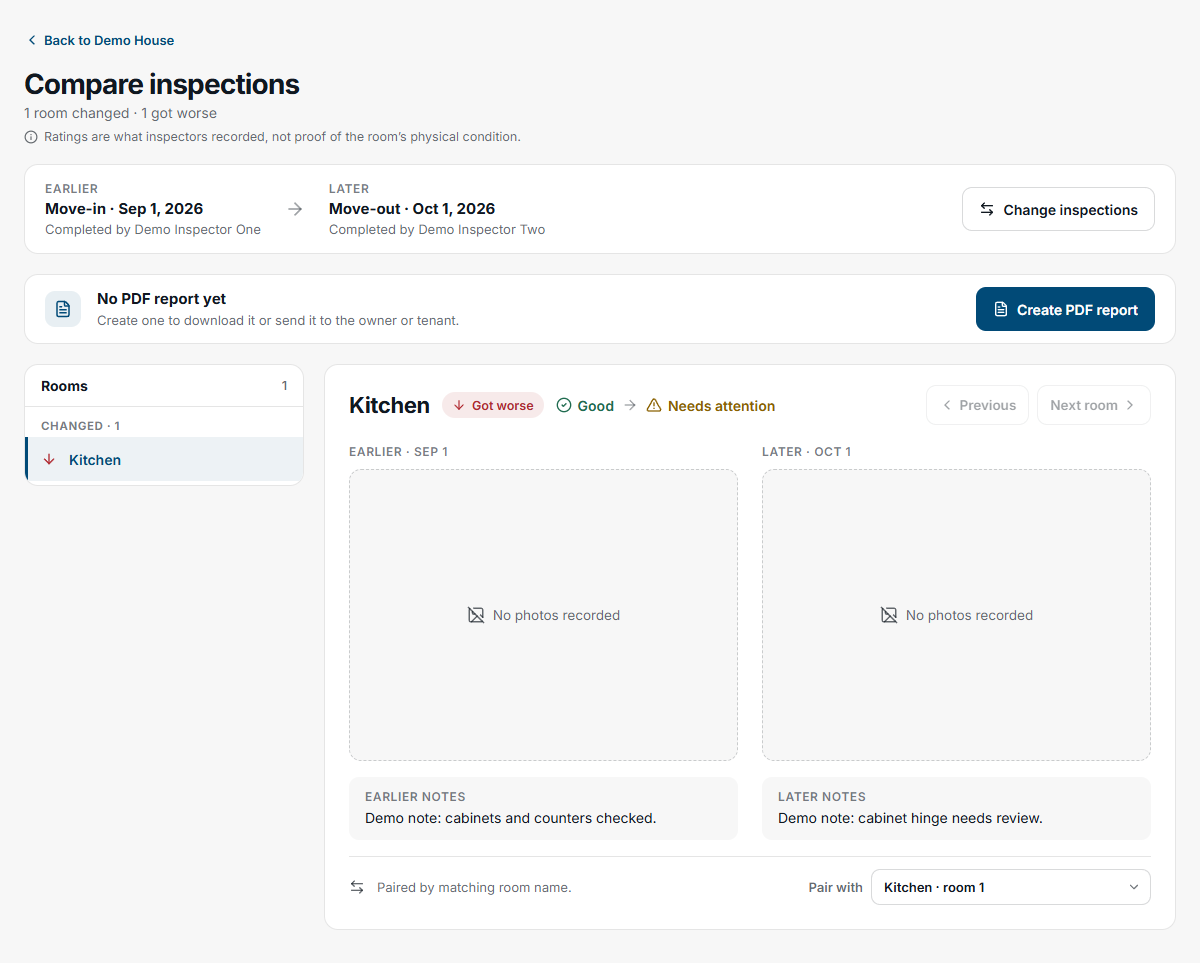
Comparison PDF reports
ProfessionalTurn a side-by-side comparison into a PDF you can keep, download, or send.
- Two visits, one file. Usually move-in and move-out, but any two finished inspections of the same unit work.
- Just the facts. Condition, notes, and photos from both visits. No charges, and no blame assigned.
- Saved to the property. Each PDF is listed on the property, so you don’t have to make it again.
- Send a private link. Email it to the owner, or to a tenant named on both inspections. The link is good for 7 days.
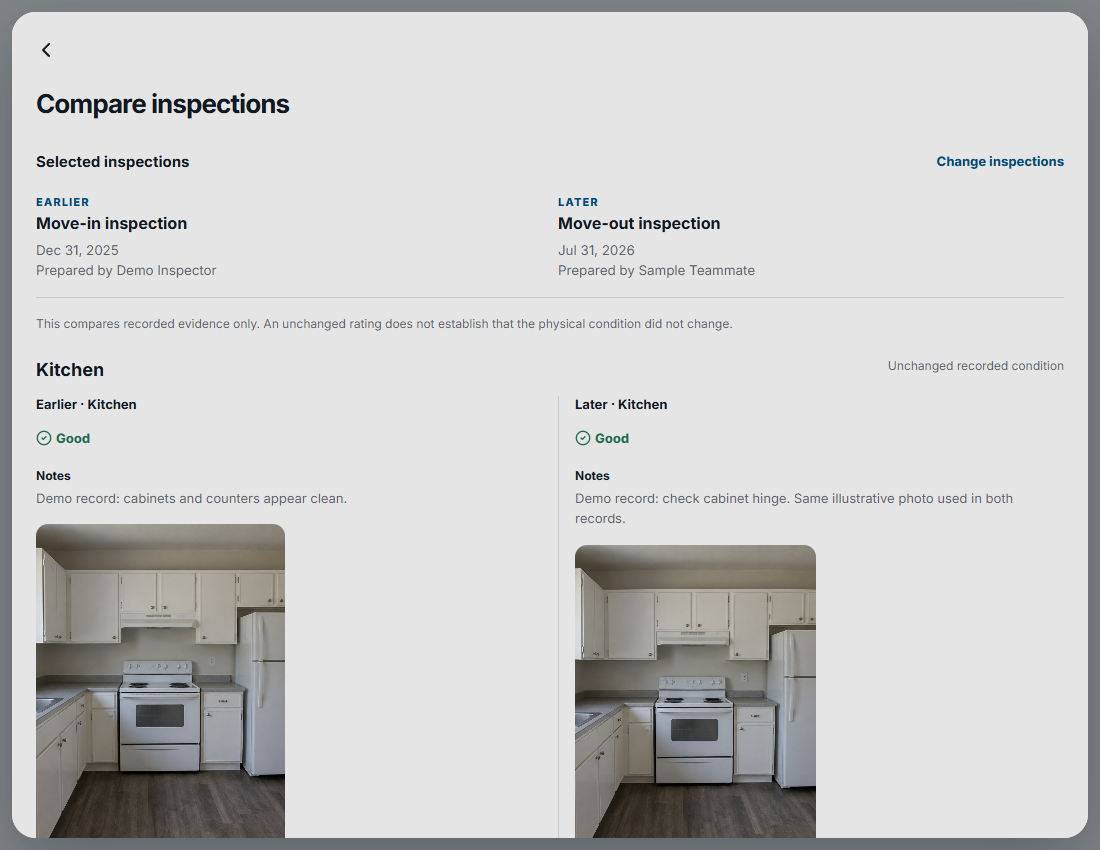
Side-by-side comparison
ProfessionalPut two inspections of the same unit next to each other and see what changed.
- Room by room. Rooms with the same name line up on their own. You can fix any that don’t.
- Both visits together. Condition, notes, and every photo from each visit, side by side.
- Changes stand out. Each room shows whether its recorded condition changed or stayed the same.
- Nothing gets changed. Comparing is read-only. Both inspections stay exactly as they were.
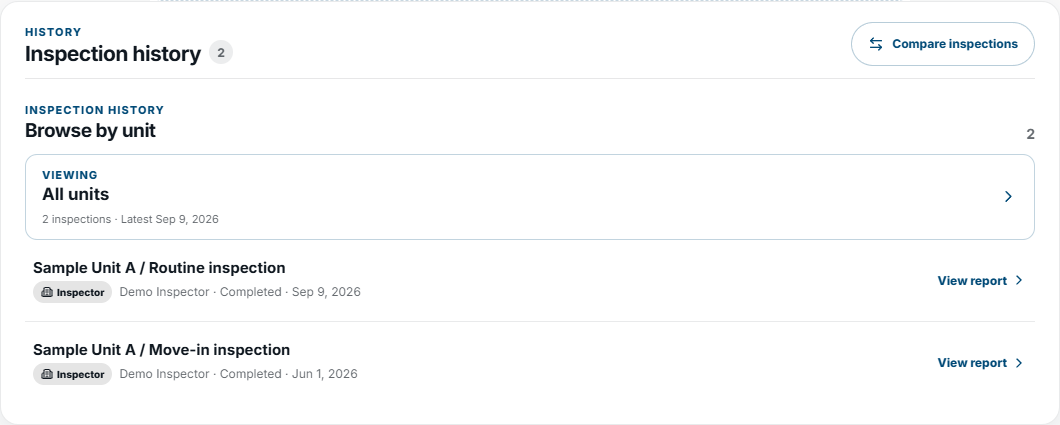
Unit history
Every inspection a unit has ever had, in one list, ready when a question comes up.
- All in one place. Move-in, routine, and move-out inspections, newest first.
- Who and when. Each one shows its date and who prepared it.
- Signature status. See at a glance if it was signed, is awaiting the tenant, or has the inspector’s signature only.
- Kept for good. Archive a property and its inspection history is still there.
Property scorecards
See how each property is doing without opening every inspection.
- Last inspected. Each property shows when it was last inspected, or that it never was.
- In progress. See which properties have an inspection underway right now.
- Filter by status. Show only properties that are not inspected, in progress, or done.
- Spot what’s overdue. Set how many days is too long, and properties past it are flagged.
Activity feed
A running list of every inspection you and your team have done, so you always know what happened.
- Newest first. Every inspection in one feed, with the property, type, and who did it.
- Search it. Find inspections by property name, address, or inspector.
- Filter it. Show only move-in, routine, or move-out, and only completed or in progress.
- Built for big portfolios. It stays fast with thousands of inspections.
One shared portfolio, and a name on every record.
Company workspace
ProfessionalEveryone works from the same properties, owners, and inspection history.
Roles
ProfessionalOwner, admin, and employee roles decide who can manage what.
Invite by email
ProfessionalAdd staff with an invitation, and remove a teammate at any time.
Know who did what
ProfessionalEvery inspection shows its preparer, and leaders are notified when one is completed.
For your tenants
What your tenants can do. No app, no account.
Open a private link
ProfessionalYou email the tenant an inspection for their unit. The link expires on its own.
Walk each room
ProfessionalCondition, notes, and photos on their own phone, one room at a time.
Stop and come back
ProfessionalTheir progress is saved, so they can finish the walk-through later.
Sign and submit
ProfessionalThe tenant signs as they submit. You get a finished report in the unit’s history.
Try all of it on your next inspection.
Every new account starts with 3 months of Professional free. No credit card.