
New feature
Compare two inspections side by side in FieldSeen

Before you start
- Plan
- Professional
- Works on
- Desktop and phone
- You’ll need
- Two completed inspections of the same property and unit
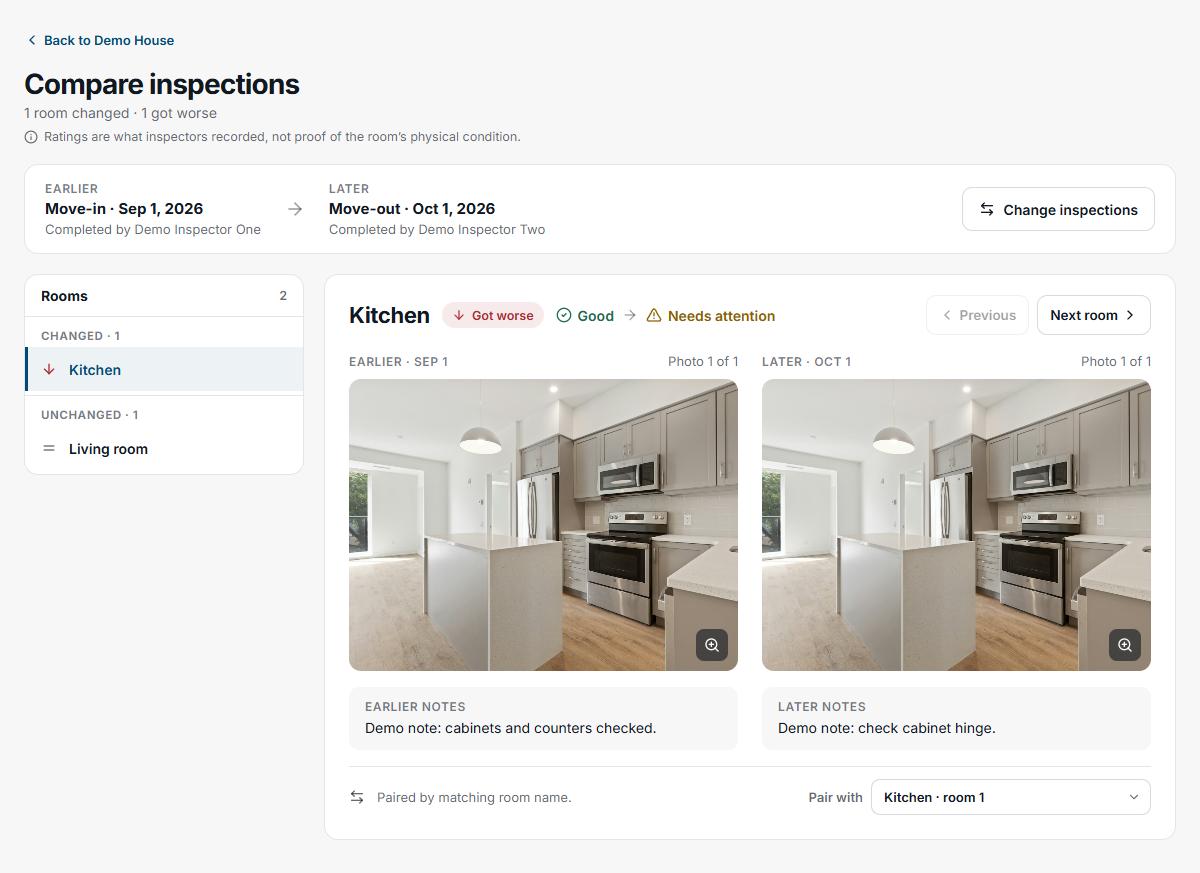
When you need to review a property across two visits, FieldSeen puts the completed inspection records together. You can see each room’s recorded condition, notes, and photos from the earlier visit beside the later one, without switching between separate records.
The desktop preview above and the screenshots below use entirely fictional demo records. The same stock kitchen photo appears on both sides to show how the interface works. These are not before-and-after evidence photos and do not show an actual condition change.
Comparison is available with Professional and needs an internet connection. Start with two completed inspections for the same property and the same unit, or two property-wide inspections. Drafts and records from different units cannot be paired.
Compare inspections on desktop
3 steps Desktop
- Open the property and find its inspection history.
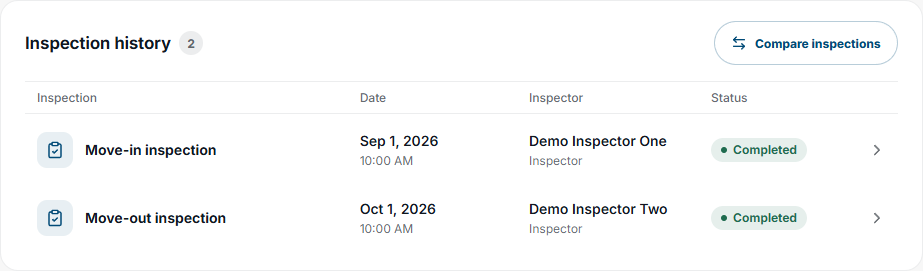
- Select Compare inspections. This control appears when the property has two compatible completed inspections.
- FieldSeen opens a compatible pair automatically. Check the dates and inspection types shown above the earlier and later records.
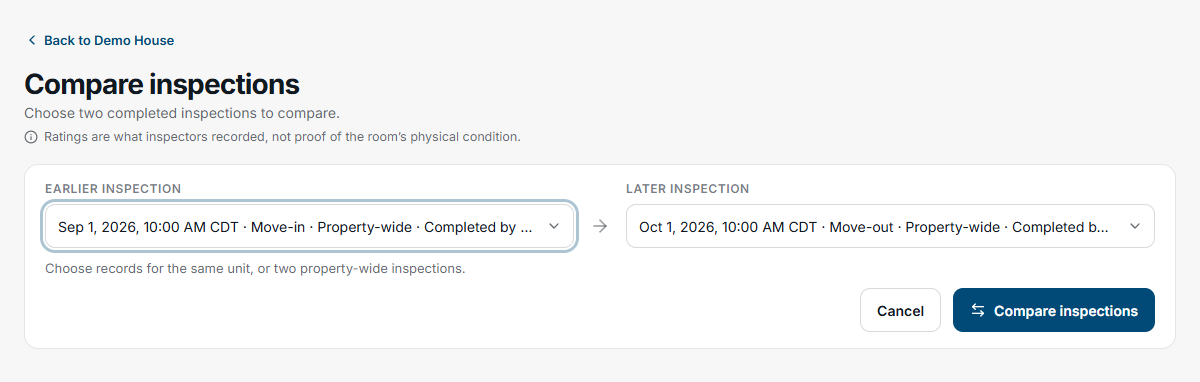
Need a different pair? Select Change inspections, choose the Earlier inspection and Later inspection, then select Compare inspections. The later choices are limited to compatible records.
Select a room from the list to review its earlier and later evidence. Use Previous and Next room to continue through the records. Open a photo at full size when you need a closer look. A successful comparison shows the selected visits and their recorded room evidence together.
Compare inspections on your phone
4 steps Phone
- Open the property and go to its inspection history.
- Tap Compare or Compare inspections.
- Choose the Earlier inspection and Later inspection, checking the dates, type, and unit or property-wide scope.
- Tap Compare inspections to load the recorded evidence.
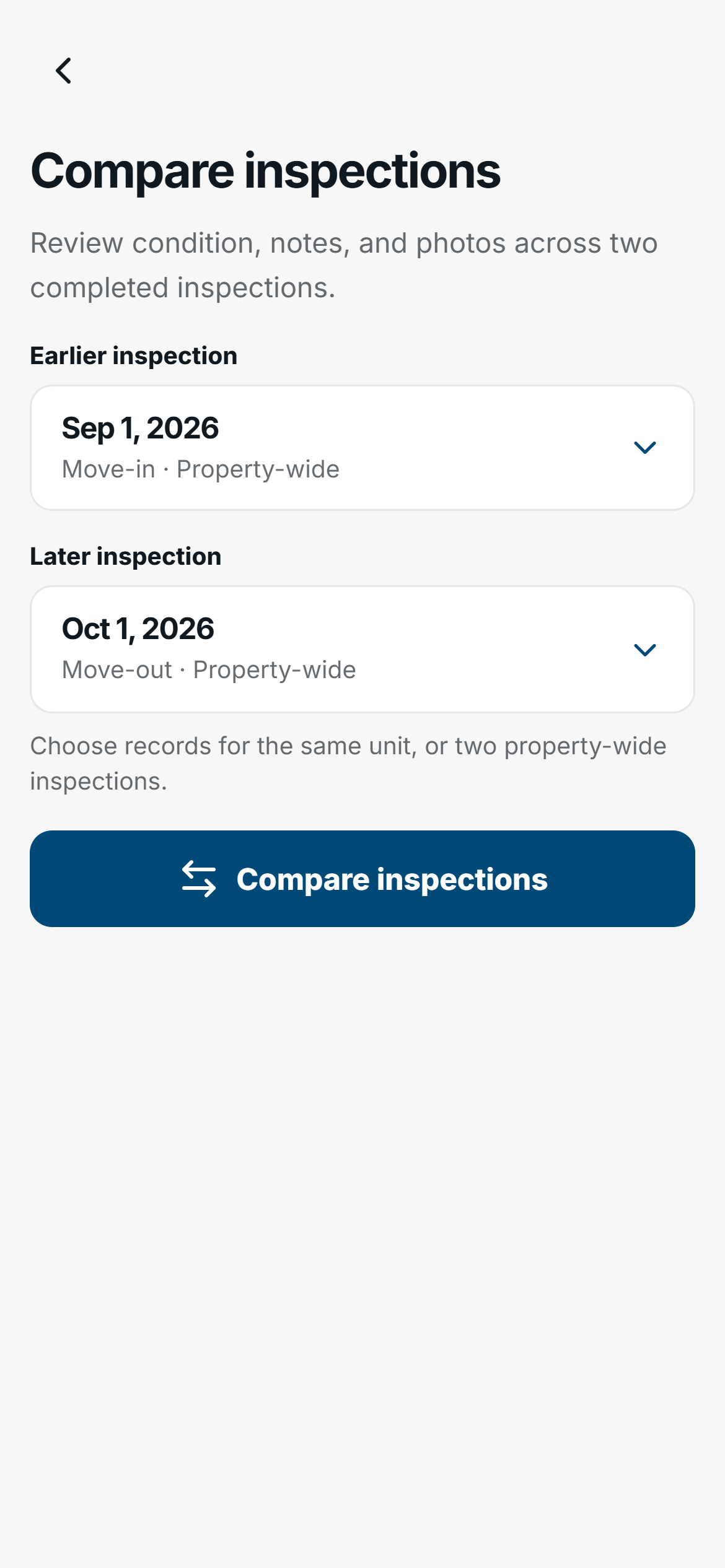
Scroll through the rooms and review the earlier and later conditions, notes, and photos. Tap a photo to open it at full size. Use Change inspections to return to the picker when you want to review another pair.
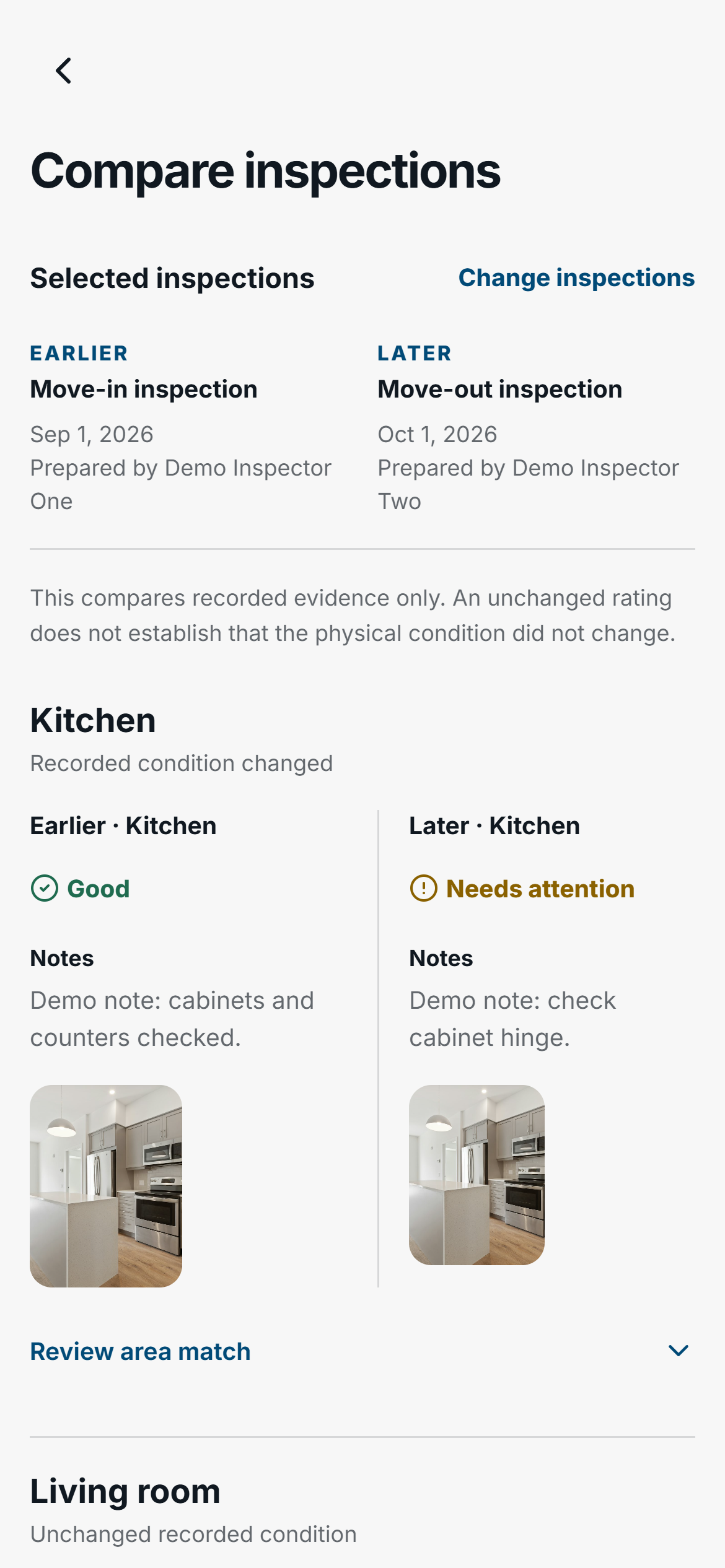
Check the room matches
FieldSeen suggests a match when a room name is unique in both records. Check the pairing, especially if rooms were renamed or added. Duplicate names need your review.
On desktop, select the room and use Pair with to choose its counterpart from the later visit. Choose No matching room if they should not be paired. A room found only in the later record offers Pair with earlier. On your phone, open Review area match beneath the room and use Match later area. Choose No matching area to leave it unmatched.
These corrections apply to the current review. They do not rename rooms, change either inspection or its saved report, or save permanent links between records.
Read the evidence behind the labels
A changed recorded condition gives you something to review. It is not an automatic finding of tenant damage. An unchanged rating does not establish that the physical condition is unchanged either. Read the notes and look at the photos in both cases.
For a hypothetical example, a kitchen might be recorded as Good at move-in and Needs attention at move-out, with a later note about staining below the sink. Compare the photos and their coverage before deciding what the records establish. FieldSeen does not determine the cause, when it began, or who is responsible.
Missing evidence, an unavailable photo, or an unmatched room is a gap to investigate. It does not establish that nothing changed. Comparison covers recorded room conditions, notes, and photos. It does not compare checklist answers. To save and share a PDF of the reviewed visits, follow the comparison PDF walkthrough.
Give yourself useful records to compare
Our move-in photo guide explains what to capture, and the move-out inspection checklist helps you review the later visit. For help describing what you observe, see normal wear and tear versus damage for landlords.
To try comparison, open a property with two compatible completed inspections and select Compare inspections. You can also find it in the FieldSeen features overview.