
Improvement
Take several inspection photos without leaving the camera in FieldSeen

Before you start
- Plan
- Free and Professional
- Works on
- Desktop and phone with camera access
- You’ll need
- An editable inspection, a room, and available photo slots
Keep the camera open while you document a room. Take several photos, check the previews, remove a shot you do not need, and return to the room with the images ready to save alongside its condition and notes.
This is available on Free and Professional on desktop and phone. Open an inspection you can edit, choose a room, and allow camera access when prompted. The screenshots use entirely fictional records and a synthetic kitchen scene supplied to the real camera interface; they do not show a customer property.
Take a room's photos on your phone
4 steps Phone
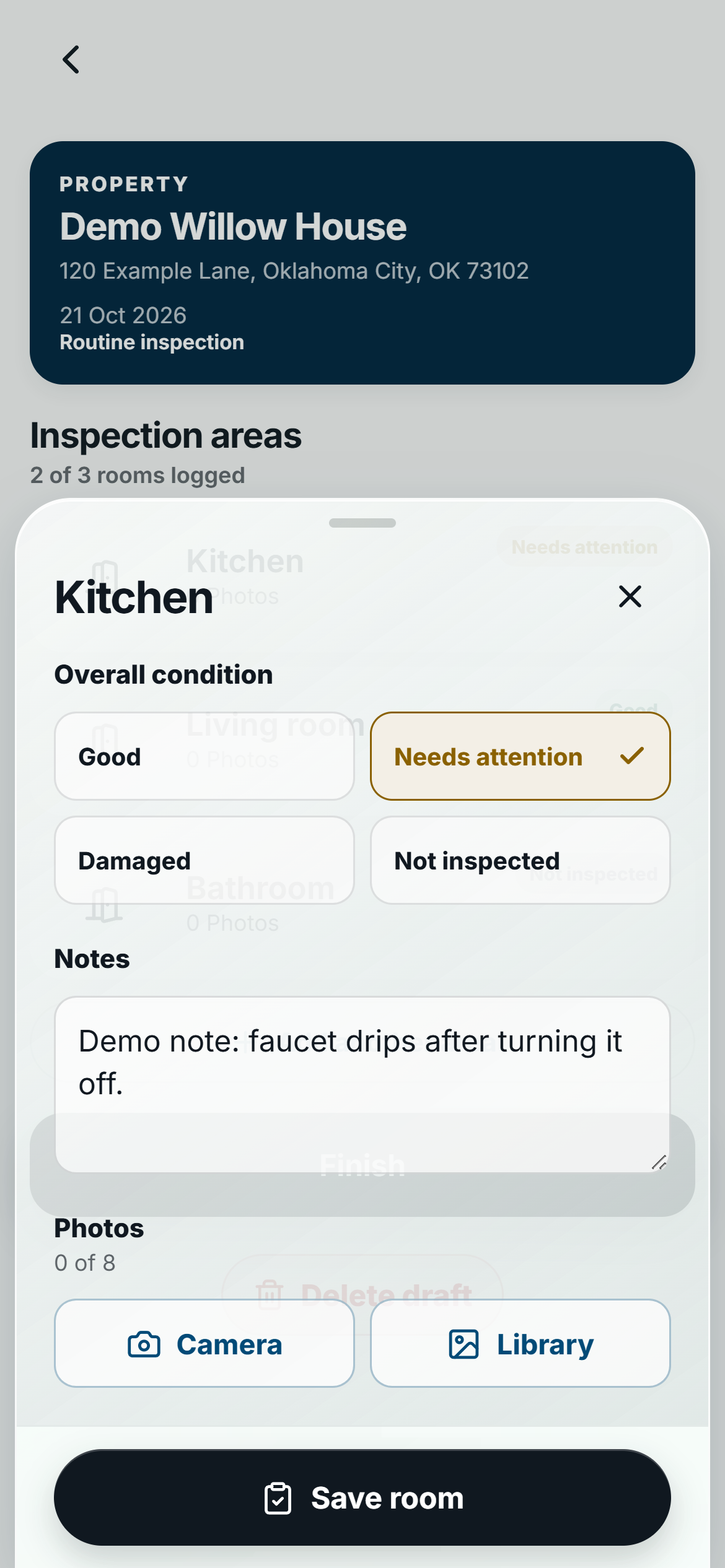
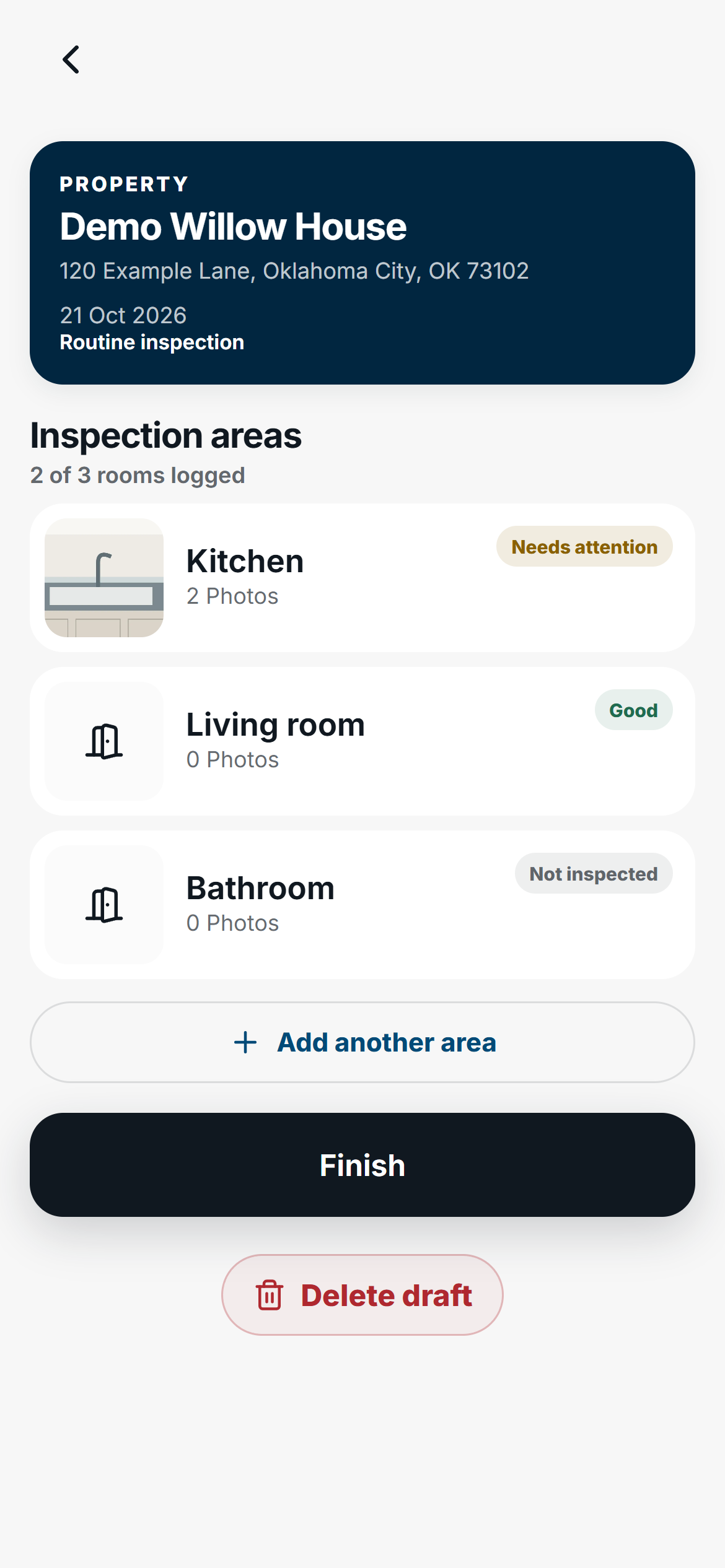
- Open or resume your inspection, then select the room you are documenting. Choose its overall condition and add useful notes.
- Under Photos, select Camera. Allow camera access if asked.
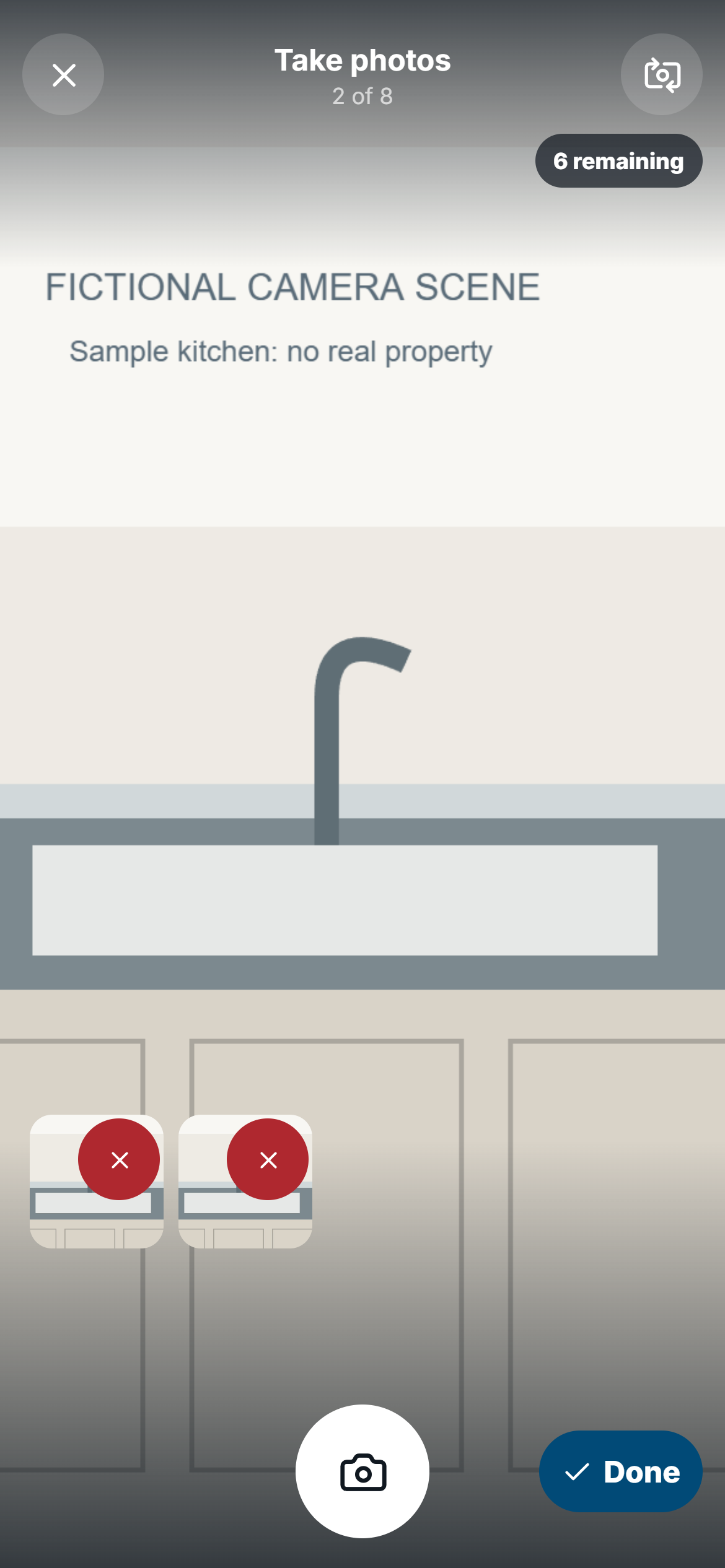
- Use the shutter button to take a photo. Keep taking the views you need without closing the camera. Check the small previews and the remaining count.
- Remove an unwanted shot with its remove control, then take a replacement if needed. Tap Done to return to the room with the captured photos.
Steps 5–5 Phone
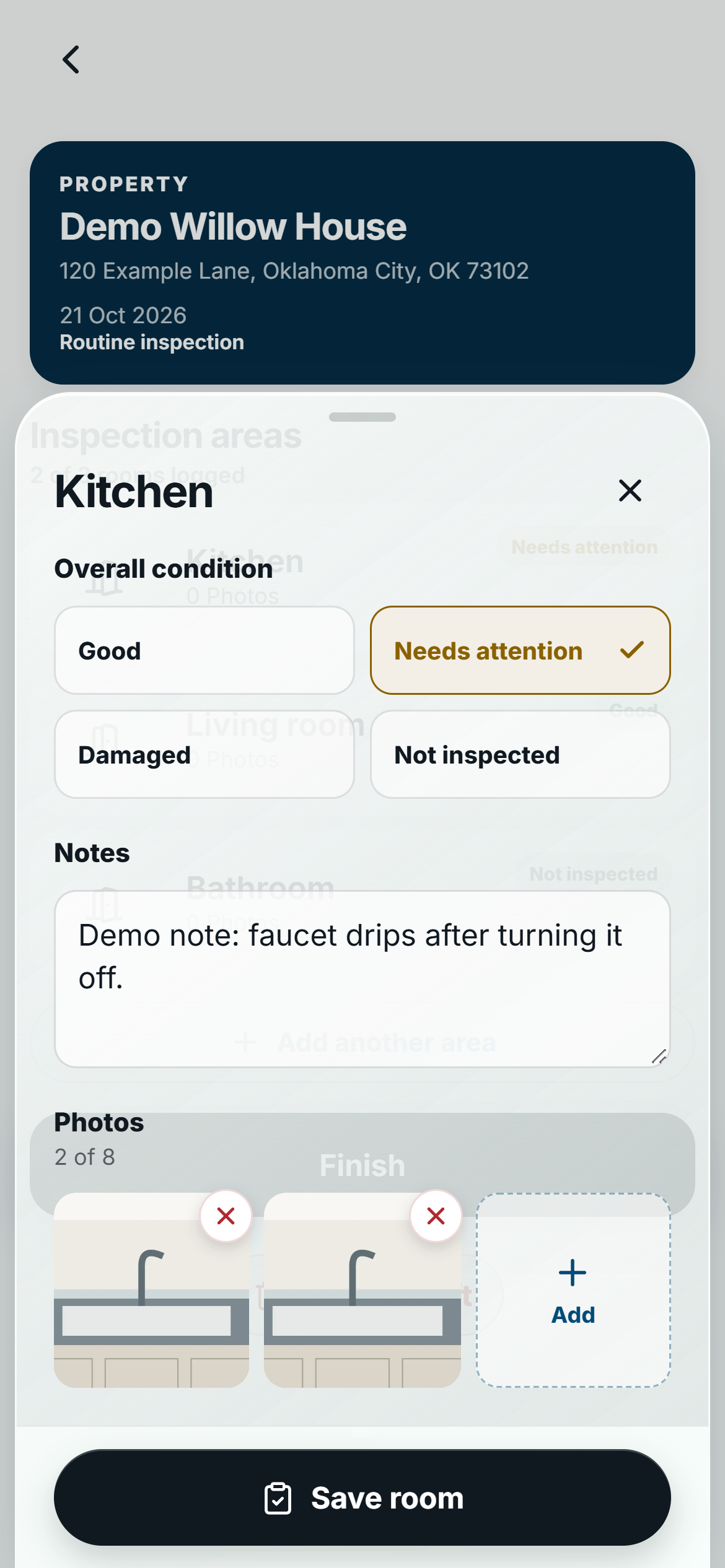
- Back in the room, review the attached previews, condition, and notes. Select Save room. Wait for the save result before moving on.
Use your computer's camera on desktop
4 steps Desktop
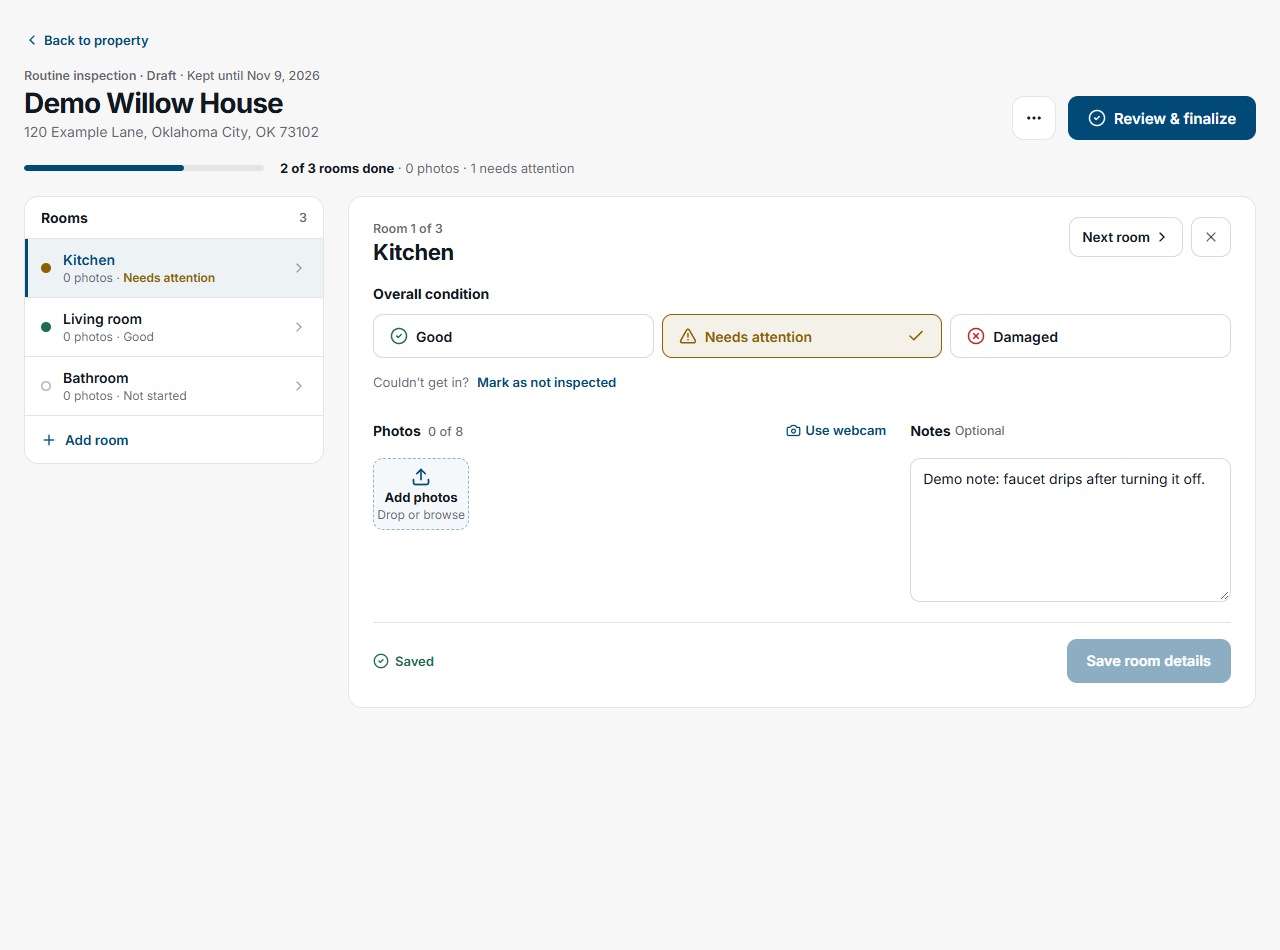
- Open or resume the inspection and select the room in the room list.
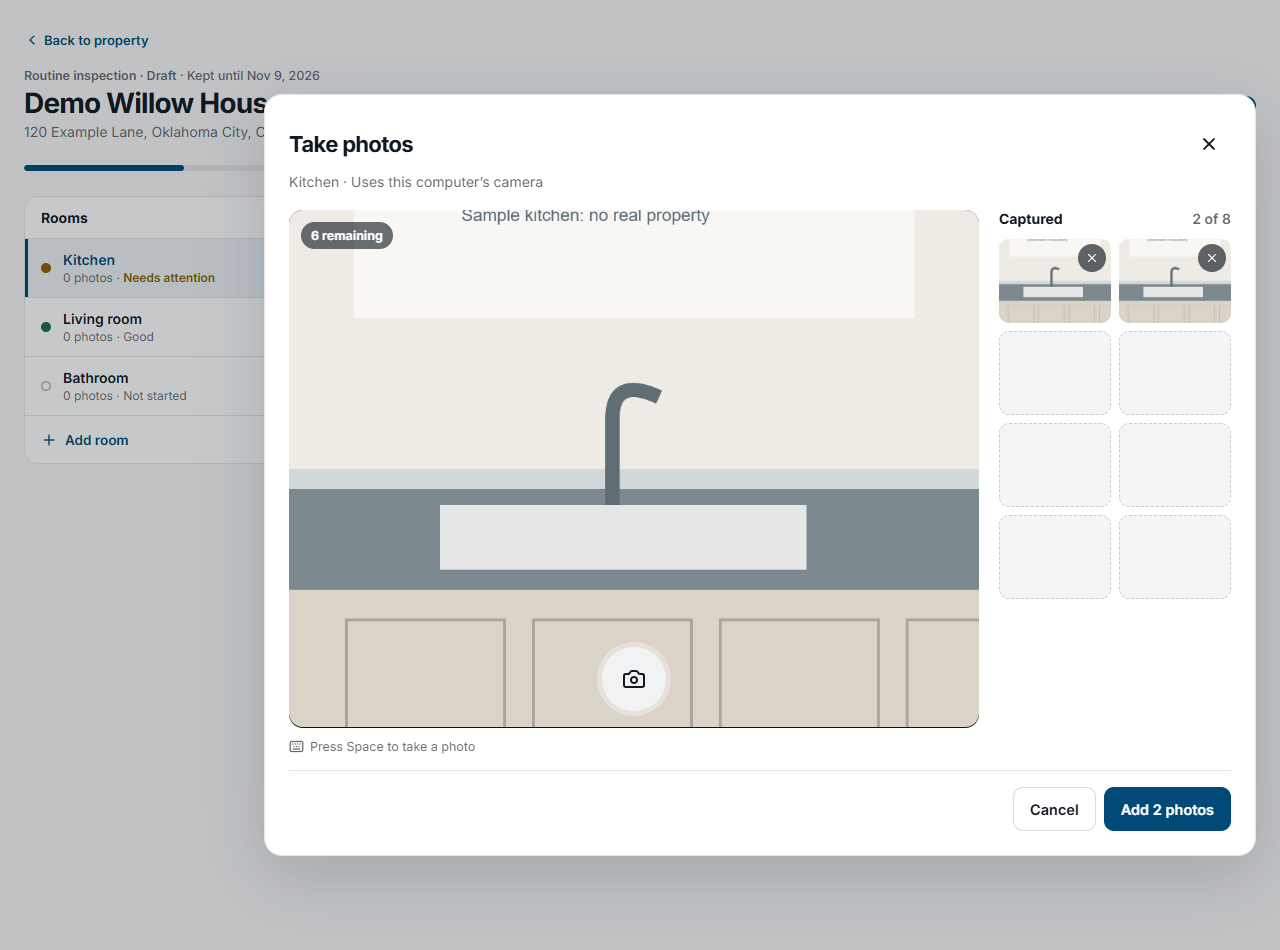
- Under Photos, select Use webcam. Allow camera access. The Take photoswindow uses your computer's camera.
- Take successive photos with the shutter. Review them in Captured and remove unwanted shots. The remaining count shows the space left in this session.
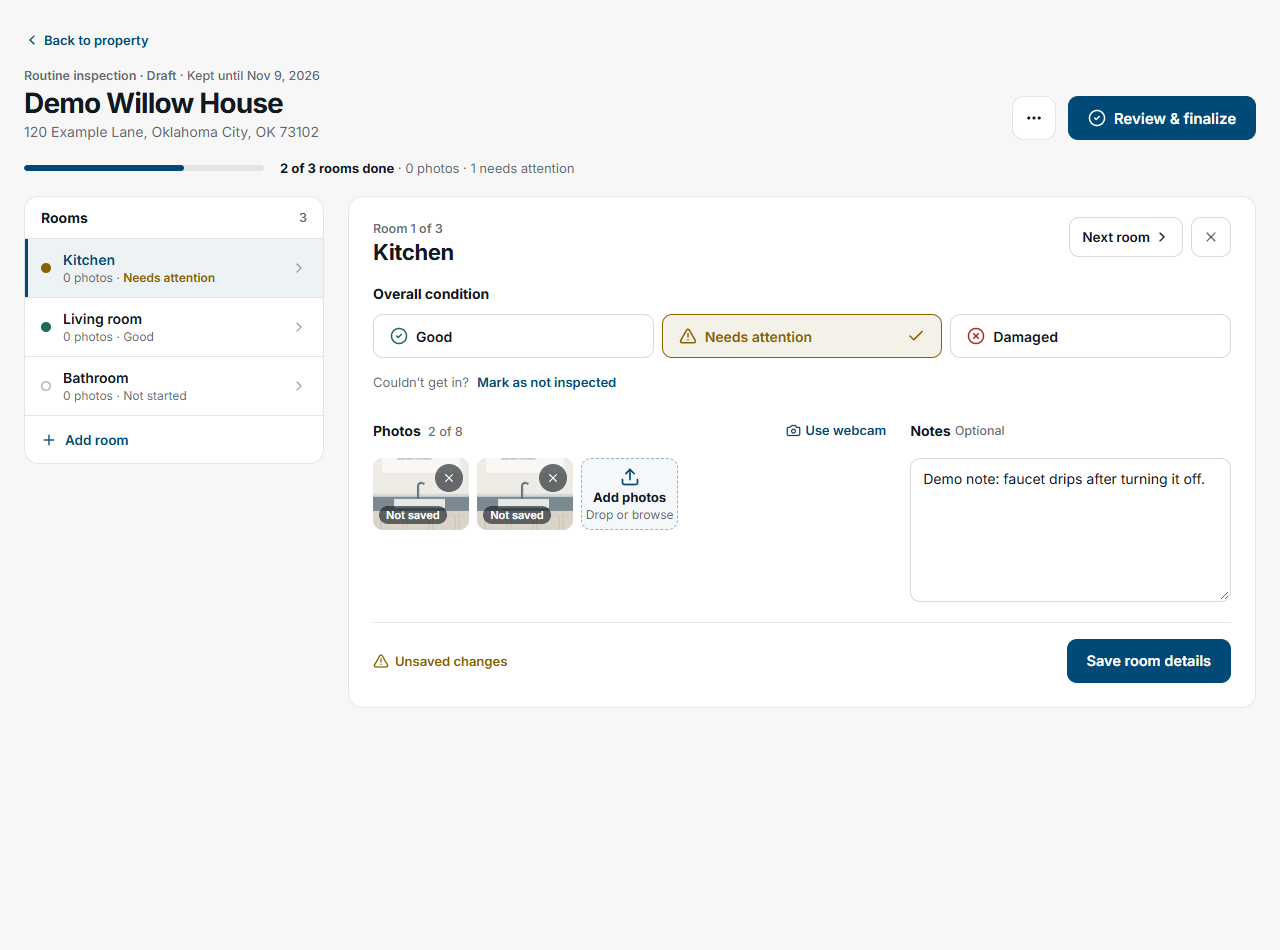
- Select Add 2 photos when you have two shots, or the corresponding Add button for your captured count. Review the room and select Save room details.
Understand the limit and save step
A room can hold up to eight photos in total. Photos already saved and photos waiting in the editor both use that allowance. For example, if a room already has three saved photos and one pending image, the camera can add up to four more. The camera's remaining count reflects the capacity available when you open it.
Done on phone and the Add button in the desktop camera window finish the capture session and return files to the editor. They do not save the room by themselves. Choose a condition and use Save room or Save room details. Follow the save or sync status shown by FieldSeen; a photo preview alone does not confirm cloud synchronization.
Use Done or the Add button to keep the shots from the current camera session. Closing the camera with its X or cancelling discards those session shots. It does not delete photos already attached to the room.
If the camera is unavailable
Check camera permission and whether another app is using the camera. If live capture is unavailable, return to the room and use Library on phone or Add photos on desktop to choose existing images. Available cameras and lens choices depend on what your device and browser expose; additional lenses are not available on every device.
For useful evidence, capture a room overview and closer views of any issue, and explain what the photos show in the room notes. Our move-in photo guide explains how to record room context and detail. See the Keep the camera open feature overview. If your next visit needs the same room names, you can also reuse rooms from a previous inspection while recording fresh photos.