
New feature
Send inspection reports directly to property owners in FieldSeen

Before you start
- Plan
- Professional
- Works on
- Desktop and phone
- You’ll need
- A completed inspection and a linked owner email
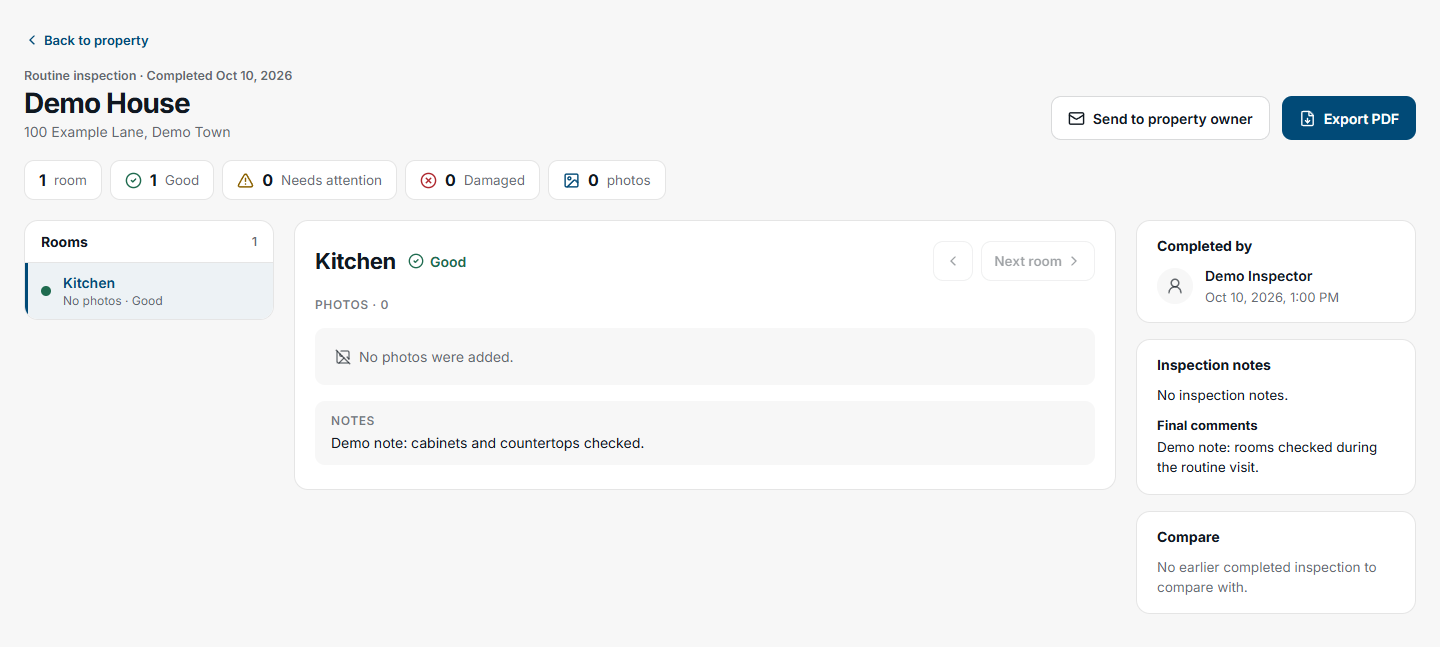
Keep property owners informed with the completed inspection report. FieldSeen lets you review the linked owner's email and send a private report link directly from the inspection, giving the owner access to the PDF without a FieldSeen account.
This walkthrough shows where to find the action on desktop and phone, how to link an owner when needed, and how to read the send status. All screenshots use the current interface with entirely fictional demo information.
Sending reports to owners requires Professional, an internet connection, a completed inspection, and a linked owner with a valid email. The PDF must be ready. You can send reports for properties you own in your personal workspace. In a company, you need permission to update the portfolio. Linking or adding owner contacts also requires owner-management permission, which company owners and admins have.
Send from the completed inspection on desktop
4 steps Desktop
- Open the property and find its inspection history.
- Open the completed inspection and select Send to property owner in the report actions.
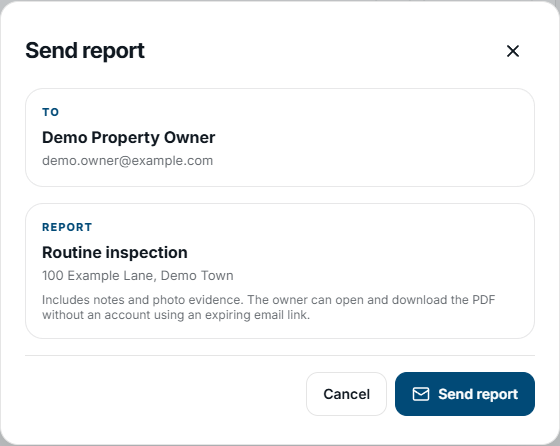
- In Send report, check the To name and email, the inspection type, and the property address.
- Select Send report to send the reviewed report link.
The confirmation shown above the article is your opportunity to check the recipient before sending. FieldSeen uses the linked owner's email rather than asking you to attach a file and address a separate message.
Send from your phone
4 steps Phone
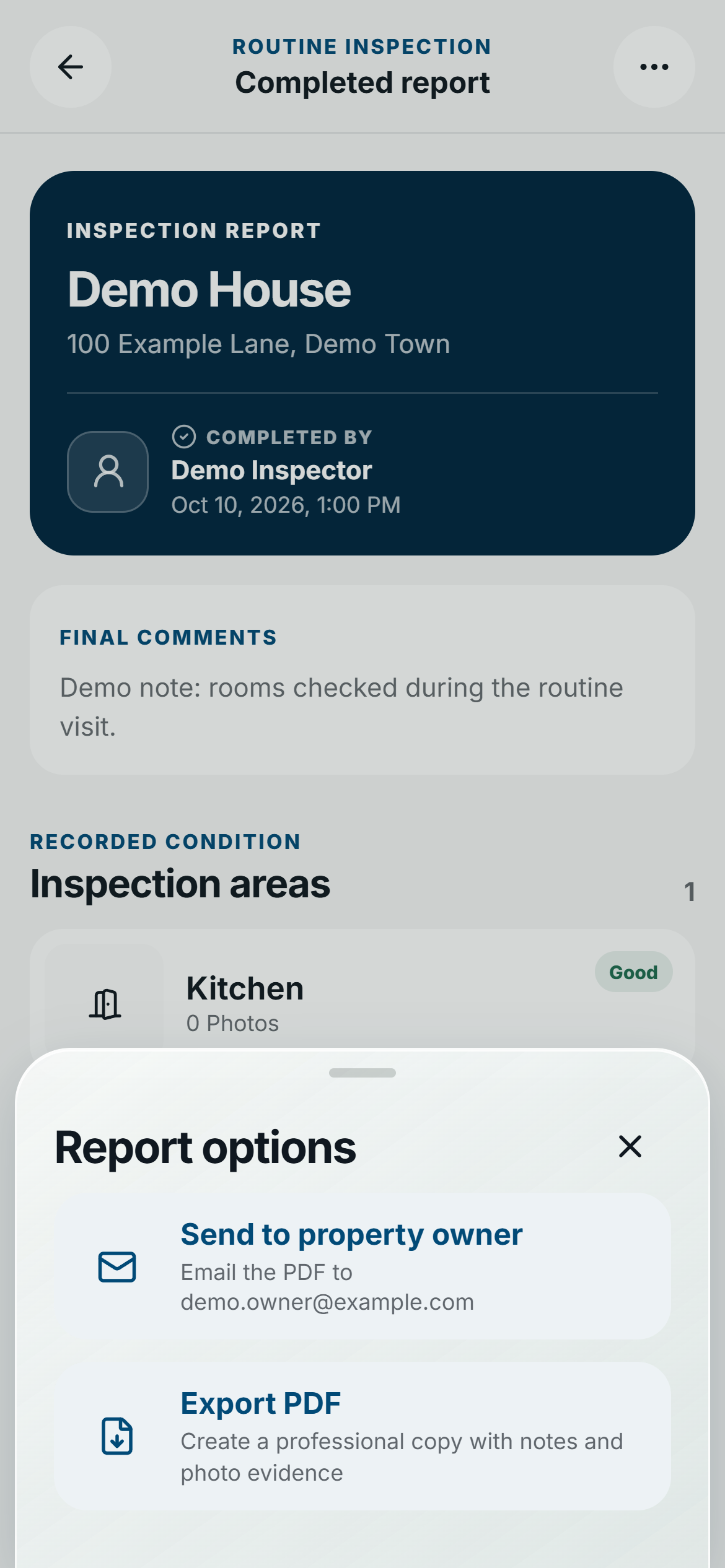
- Open the property and its completed inspection.
- Tap Report options, then Send to property owner.
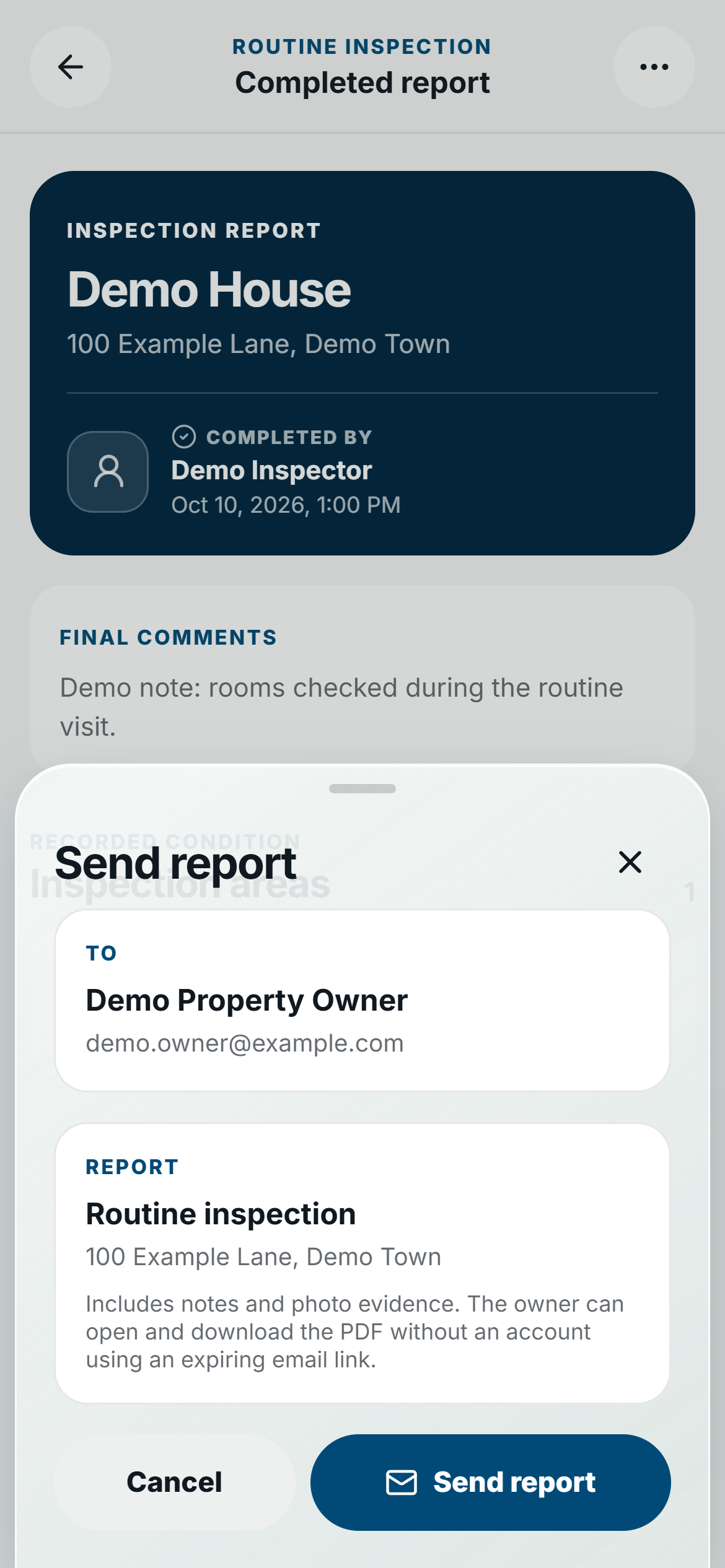
- Review the owner, email, and report details in the Send report sheet.
- Tap Send report.
If the property needs an owner or email
If no owner is linked and you can manage owners, the report action reads Add property owner. Select it to open Choose owner. Search for an existing owner, check the contact, and select that owner to link them to the property. You then return to the report-send confirmation if their email is valid.
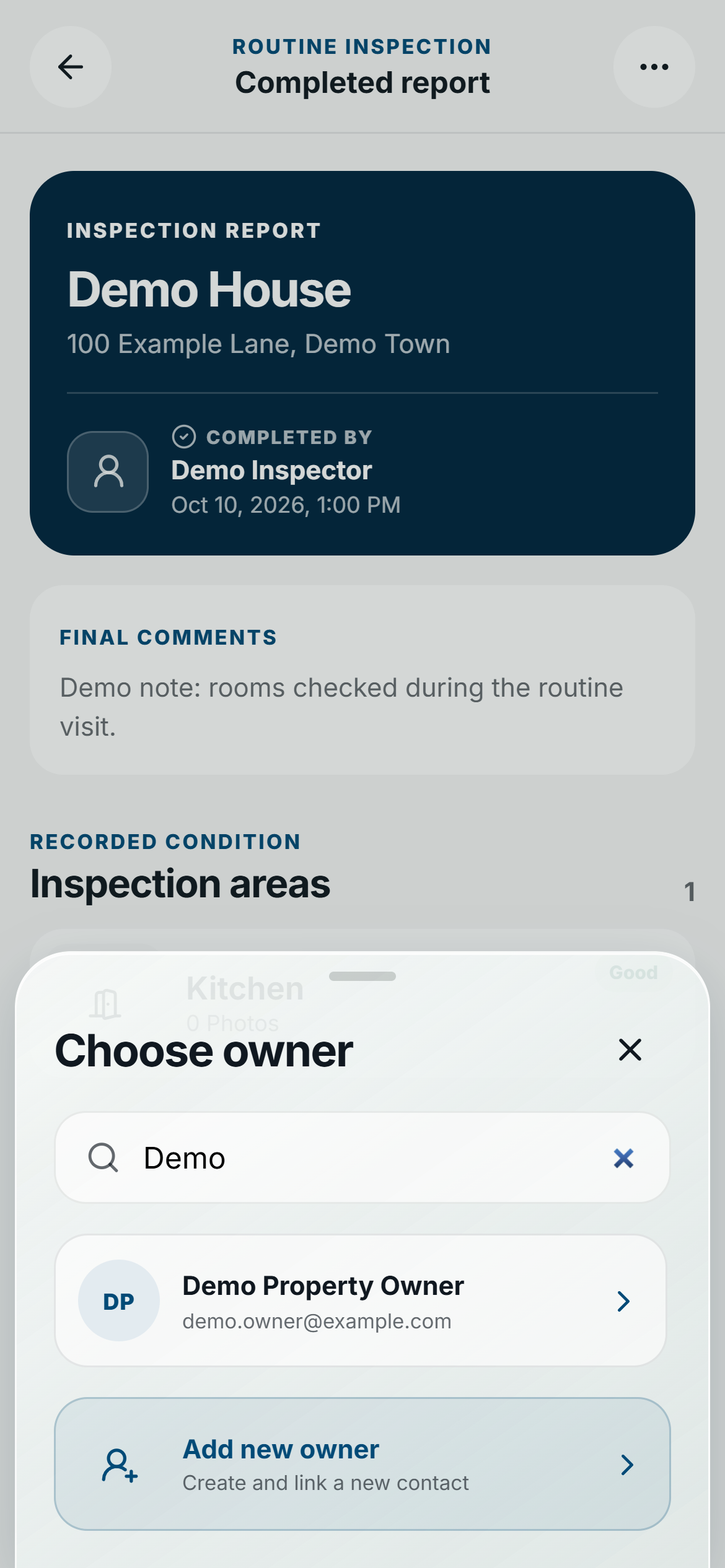
For a new contact, select Add new owner. Enter the Name and Email, then select Add and link owner. The form allows an owner record without an email, but report sending still needs a valid email. Adding the contact does not itself send the report; review and confirm the send afterward.
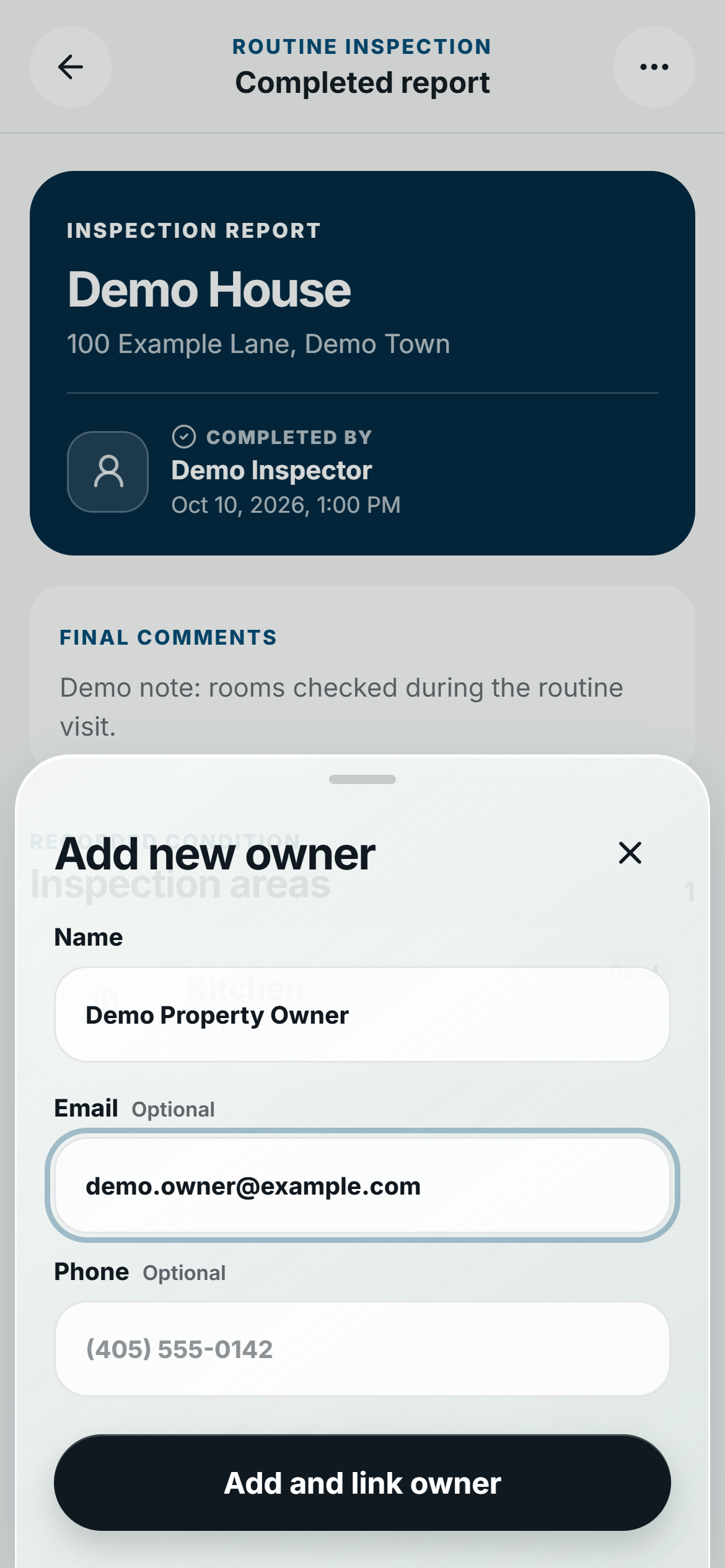
If an existing linked owner has no valid email, the action reads Add owner email. Follow the message to update their email in Owners, then reopen the report and check the recipient again. If you cannot manage owners, ask someone with that permission to link or update the contact first. See the owner directory overview for how FieldSeen keeps owner contacts with their properties.
Check what the send status means
Report sent means the email provider accepted the report link. It does not confirm inbox delivery, receipt, or that the owner opened the report. The confirmation shows the recipient and send details so you can check what happened.
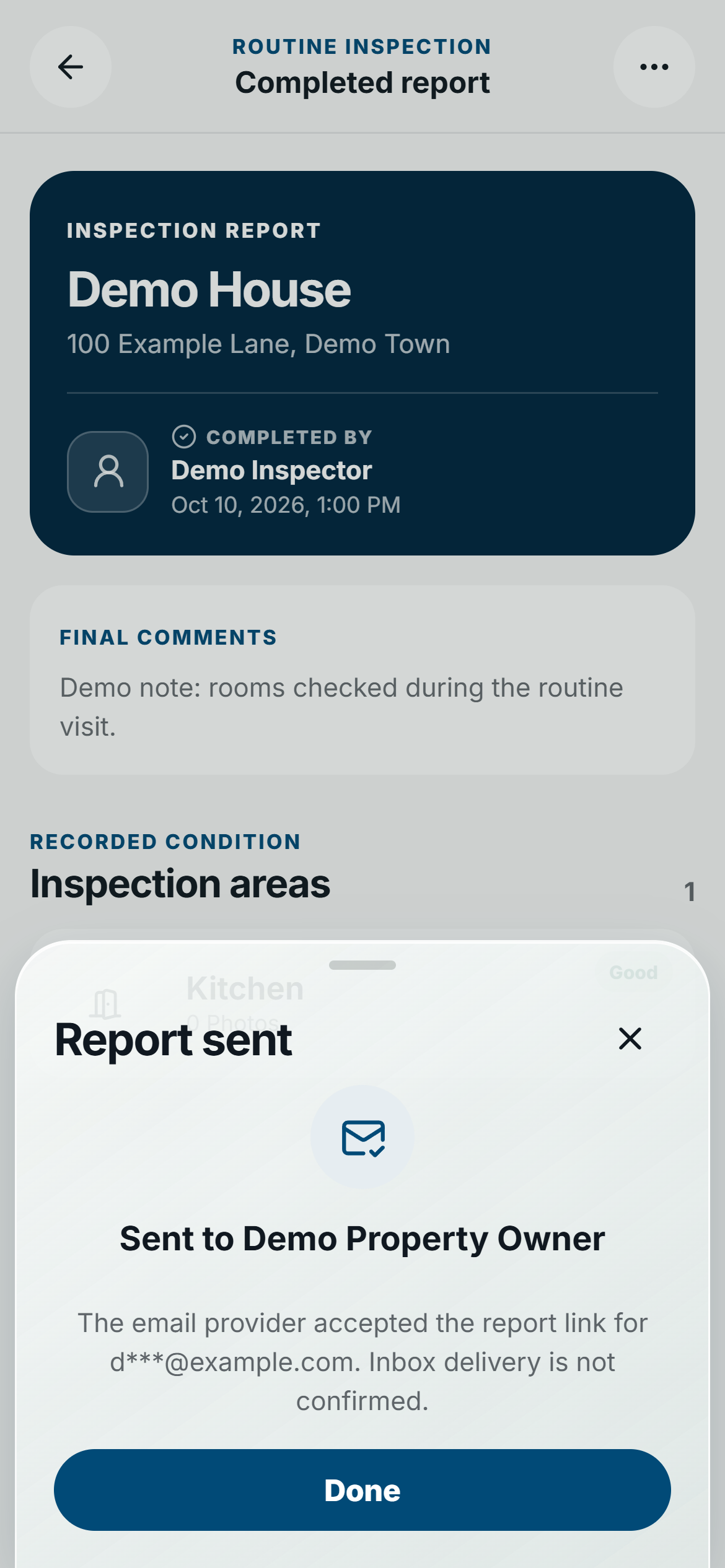
If you see Report queued, the send is not confirmed. Check its status or explicitly retry when the PDF is ready. Closing the window does not schedule an email. If the PDF needs preparation, close the send sheet, use Export PDF, and return to sending after the report is ready. A failed send offers a retry when allowed; some uncertain or exhausted attempts need support review instead.
Reopening the send confirmation can show Last sentand whether that email's link has expired. Use Send again only when you intend another send, and review the current owner and email first. Checking status alone does not send another email.
How the owner opens the report
The email contains a private link that expires seven days after the recorded successful send. The owner opens it without signing in and selects Open PDF report to open or download the inspection PDF. Keep the email private, because anyone with a working link can use it to access the report. If the link has expired, review the recipient in FieldSeen and deliberately send a new link.
For clearer reports, use our move-in photo guide and reusable inspection checklist walkthrough to prepare useful inspection records. You can also find the sending workflow in the Send to owner feature overview. To use it, open a completed inspection and review its linked owner before selecting Send report.