
New feature
Create an inspection comparison PDF in FieldSeen

Before you start
- Plan
- Professional
- Works on
- Desktop and phone browsers
- You’ll need
- Two completed inspections of the same property and unit, plus a connection
Keep a shareable record of two inspection visits. FieldSeen lets you create a comparison PDF from the completed inspections you are reviewing, save it with the property, and download it or send a private link to an eligible owner or tenant.
This walkthrough shows how to create the report, check the room pairing, and find the saved copy later. All screenshots use the current interface with entirely fictional property, inspection, and recipient information. The demo notes illustrate controls, rather than evidence of an actual property change.
Comparison reports require Professional, an internet connection, and access to two completed inspections for the same property and exact unit, or two property-wide inspections. The property and inspections must be available, rather than archived. Drafts and inspections from different units cannot be paired.
Create the comparison PDF on desktop
4 steps Desktop
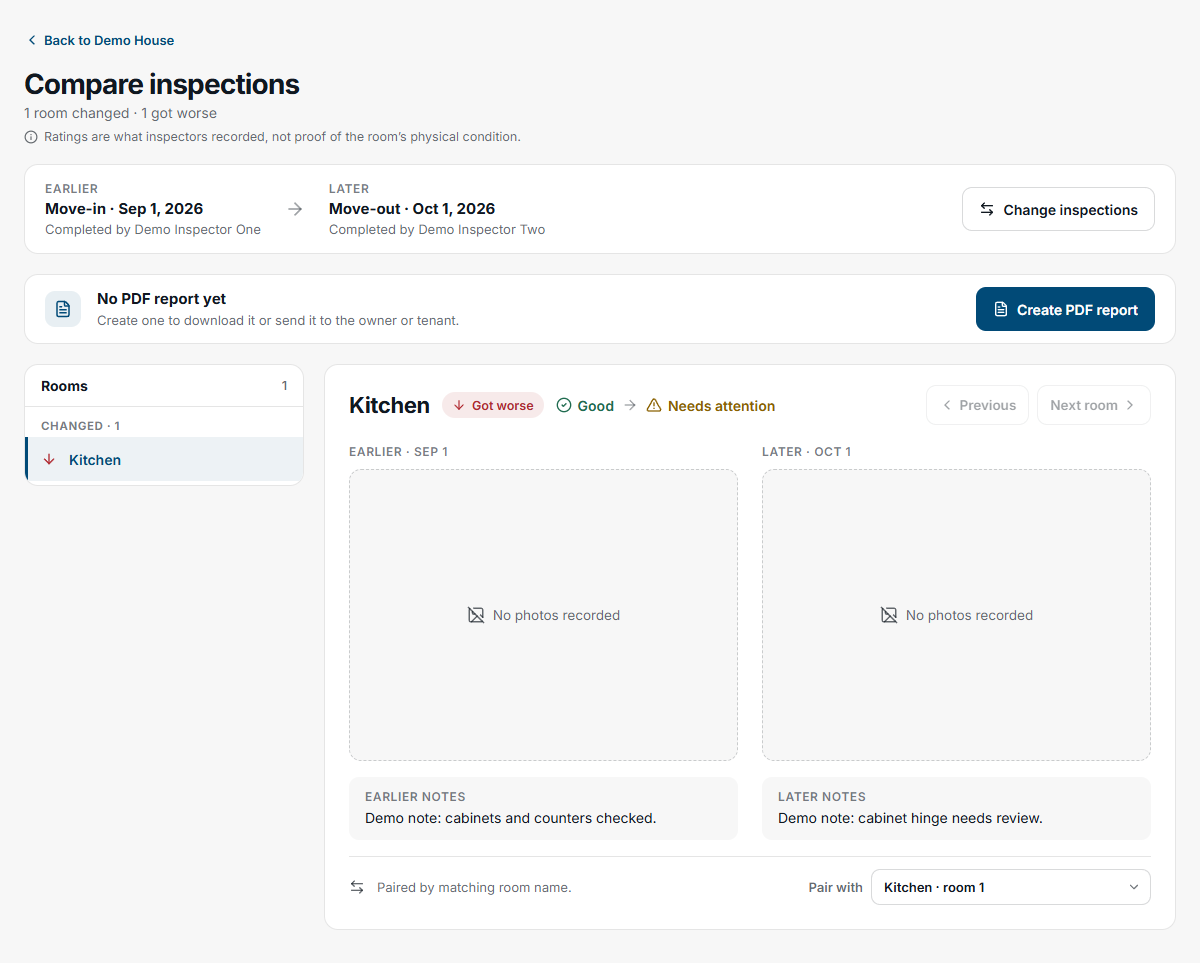
- Open the property and its inspection history, then select Compare inspections.
- Check the earlier and later visits. Use Change inspections to choose another compatible pair.
- Review the rooms. Use Pair with to correct a match before creating the report, or leave a room unmatched when appropriate.
- Select Create PDF report.
While FieldSeen sends the request, keep the page open. Sending request…means the report has not yet been confirmed as saved. Once the server accepts it, the status changes to Preparing report…. At that point you can leave the page; the report is being prepared and saved to the property.
When you see Report saved, select Open report to view it or Download to save the PDF through your browser.
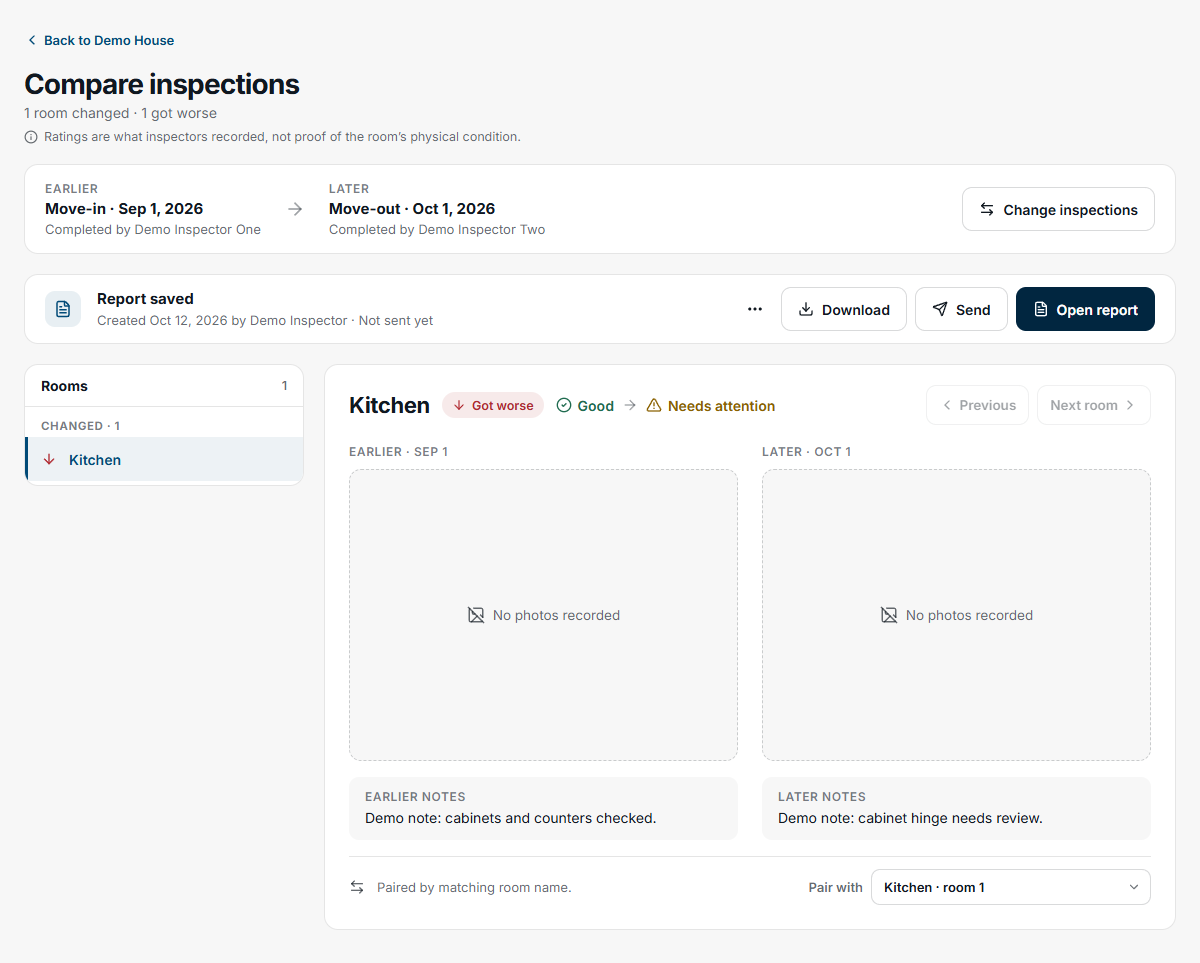
If creation fails, read the message and use Try again when offered. A failed attempt is not a ready PDF. Check the saved report list before starting another request after an uncertain connection failure.
Create and save it on your phone
4 steps Phone
- Open the property's inspection history and tap Compare or Compare inspections.
- Choose the Earlier inspection and Later inspection, then tap Compare inspections.
- Review the rooms and correct matches under Review area match if needed.
- Tap Create PDF report in the PDF bar at the bottom.
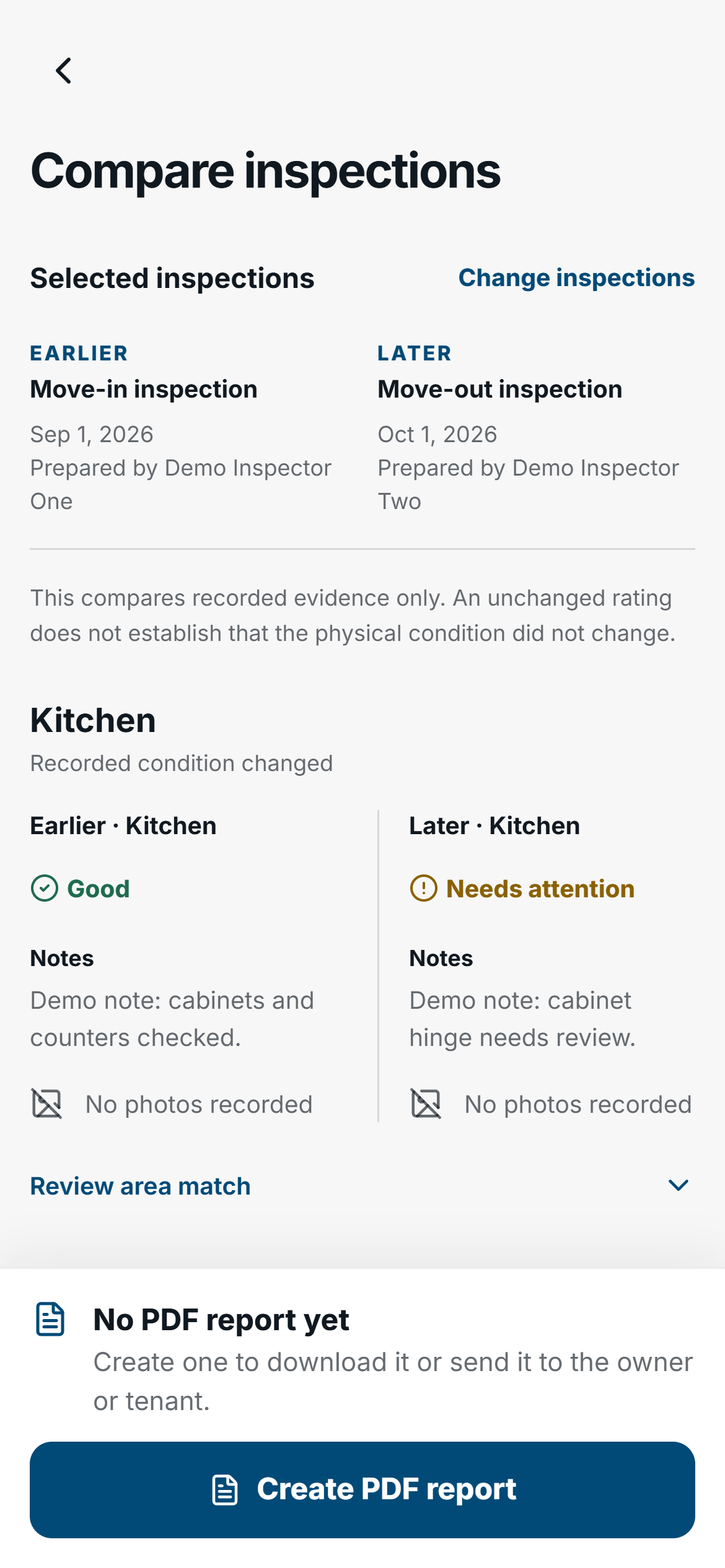
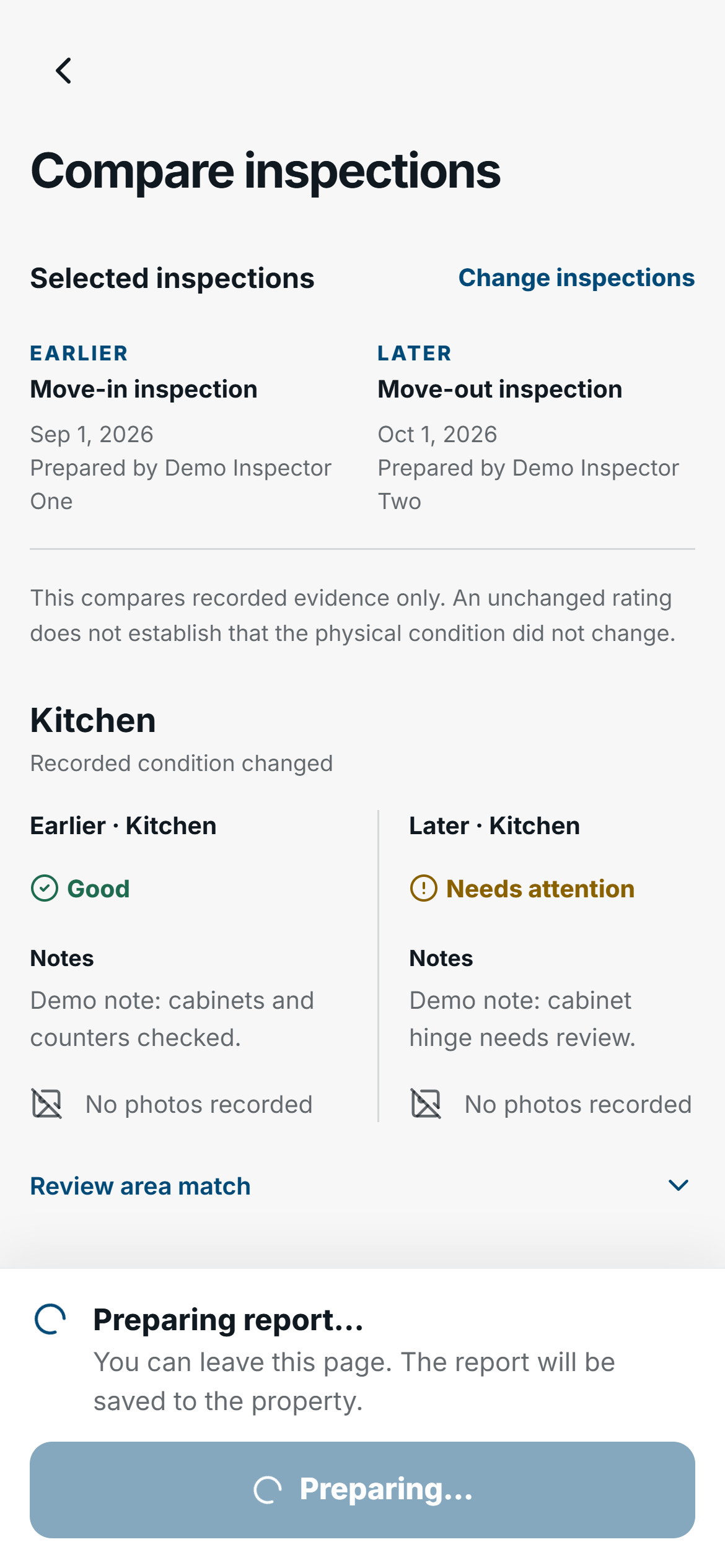
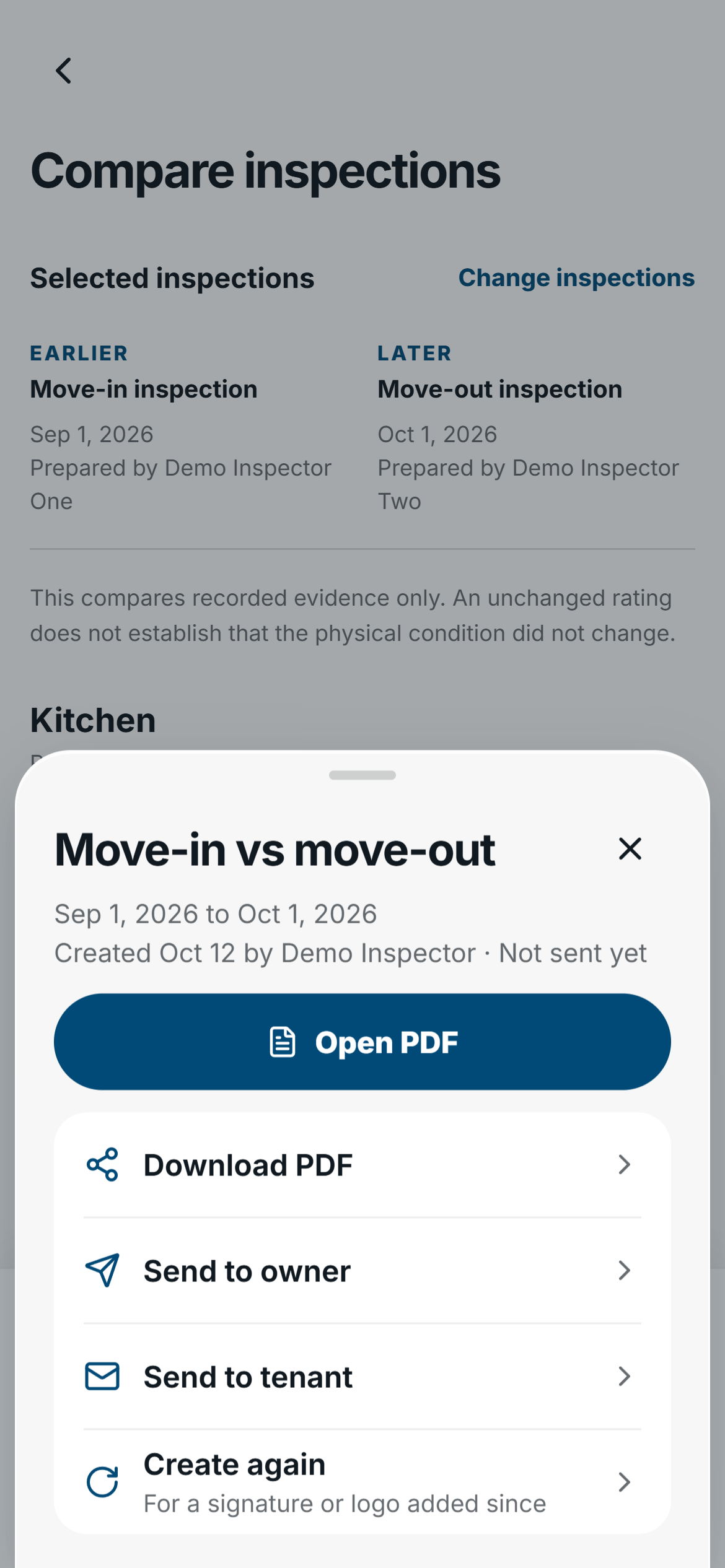
When the report is saved, tap Open report to view it. For a file or email action, tap Share or send. In a phone browser, the file action is Download PDF. Supported native builds use Share or save to Files through the device share sheet; the exact destinations depend on the device.
Know which room pairing the PDF uses
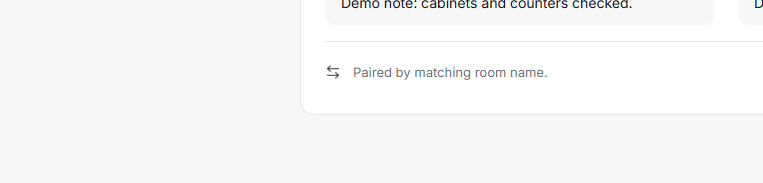
The PDF keeps the room pairing used when it was created. Opening the comparison again starts from the newest nonfailed report's pairing, including a report still being prepared. An ordinary create request reuses the current saved or preparing report when its pairing is unchanged. Returning to an older pairing after creating another one makes a new report; it does not retrieve that older PDF automatically.
If you change the pairing, FieldSeen shows Room pairing changed. On desktop, use Open saved report to view the earlier PDF or Create updated report for the current pairing. On your phone, those controls read Open saved and Create updated. Changing the on-screen pairing does not rewrite a saved PDF.
To deliberately make another report with the same pairing, choose Create againfrom the desktop report's more-actions menu or the phone action sheet. Use it when you intend a new report, rather than repeatedly pressing create while one is preparing.
Find the report again in Property Details
On desktop, return to the property's Comparison reportscard below inspection history. It lists the saved reports and their creation details. Use the report's open, download, or send actions there without creating another PDF.
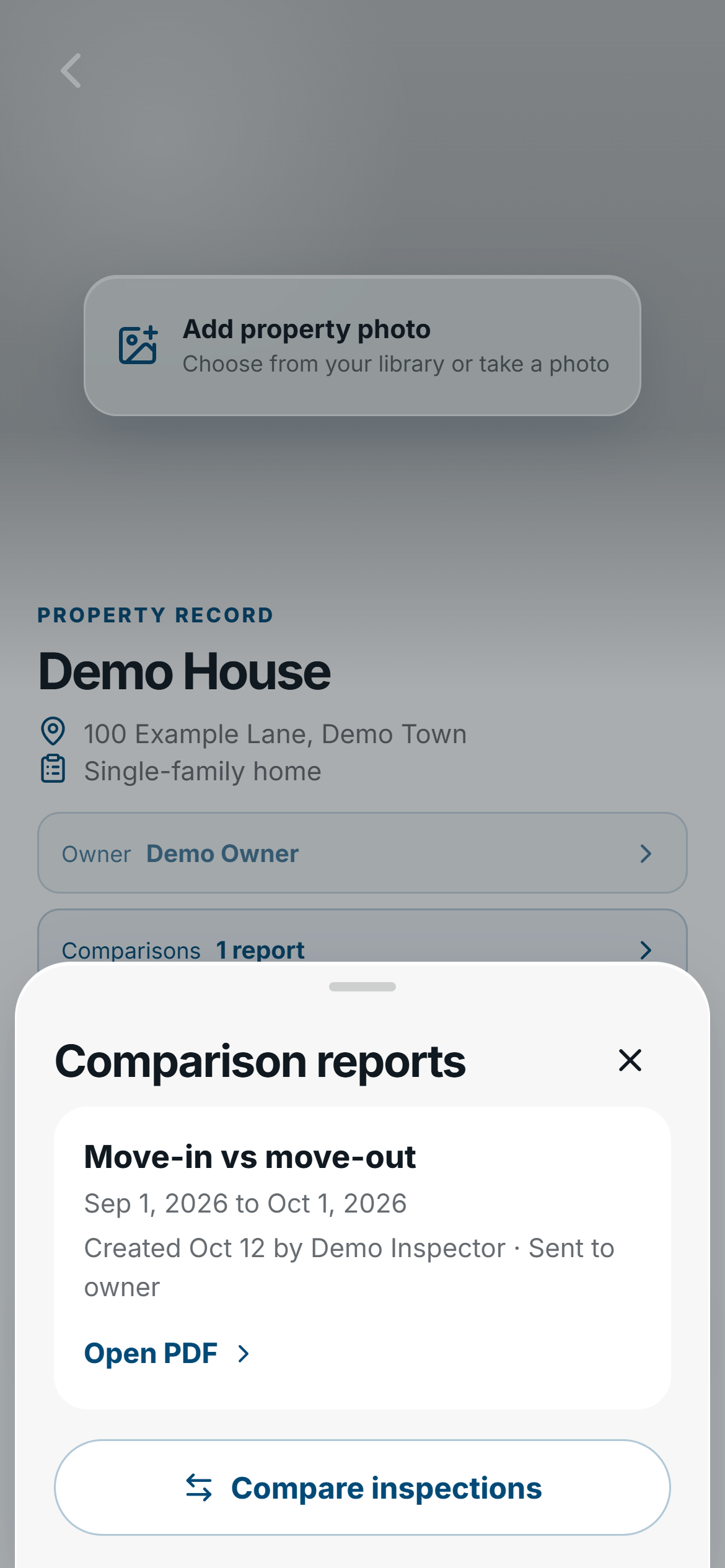
On your phone, tap Comparisons in Property Details to open Comparison reports, then select the report for its actions. Check the selected unit when the property has several units. Archiving the property or either inspection makes its saved comparison unavailable to open or send until restored.
Send a reviewed report link
4 steps Desktop or phone
- Select Send on desktop or Share or send on your phone.
- Choose Send to owner or Send to tenant when offered.
- Review the recipient and email on file, the property, and the two inspection dates. For a tenant, select an eligible tenant if there is a choice.
- Select Send report, then read the result.
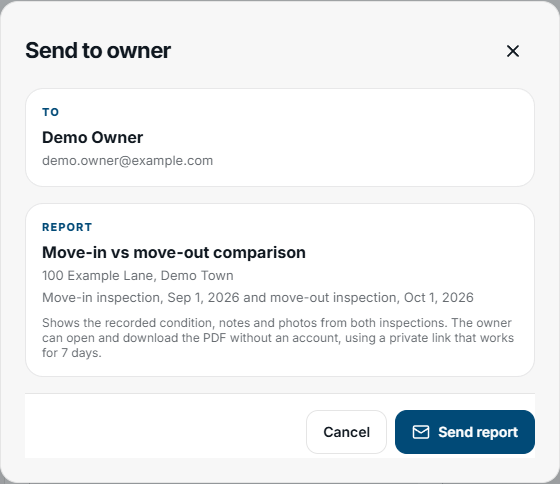
Owner sending needs a linked owner with a valid email and permission to send reports for the property. Company senders need portfolio-update permission. Tenant sending needs tenant-management permission and a tenant with a valid email in the comparison's exact unit scope. A property-wide report for a multi-unit building has no tenant recipient.
Being on file for the unit is not enough for a tenant. Both inspections must name that tenant record, through a recorded signature or outcome, a signing request, or the invitation used to complete the inspection. A tenant who is not tied to both records cannot be chosen, even if they live in that unit now.
The email contains a private, accountless report link that lasts seven days from email-provider acceptance. Keep it private. Sending again to a tenant who already received this report replaces their previous link after you explicitly review and confirm the resend.
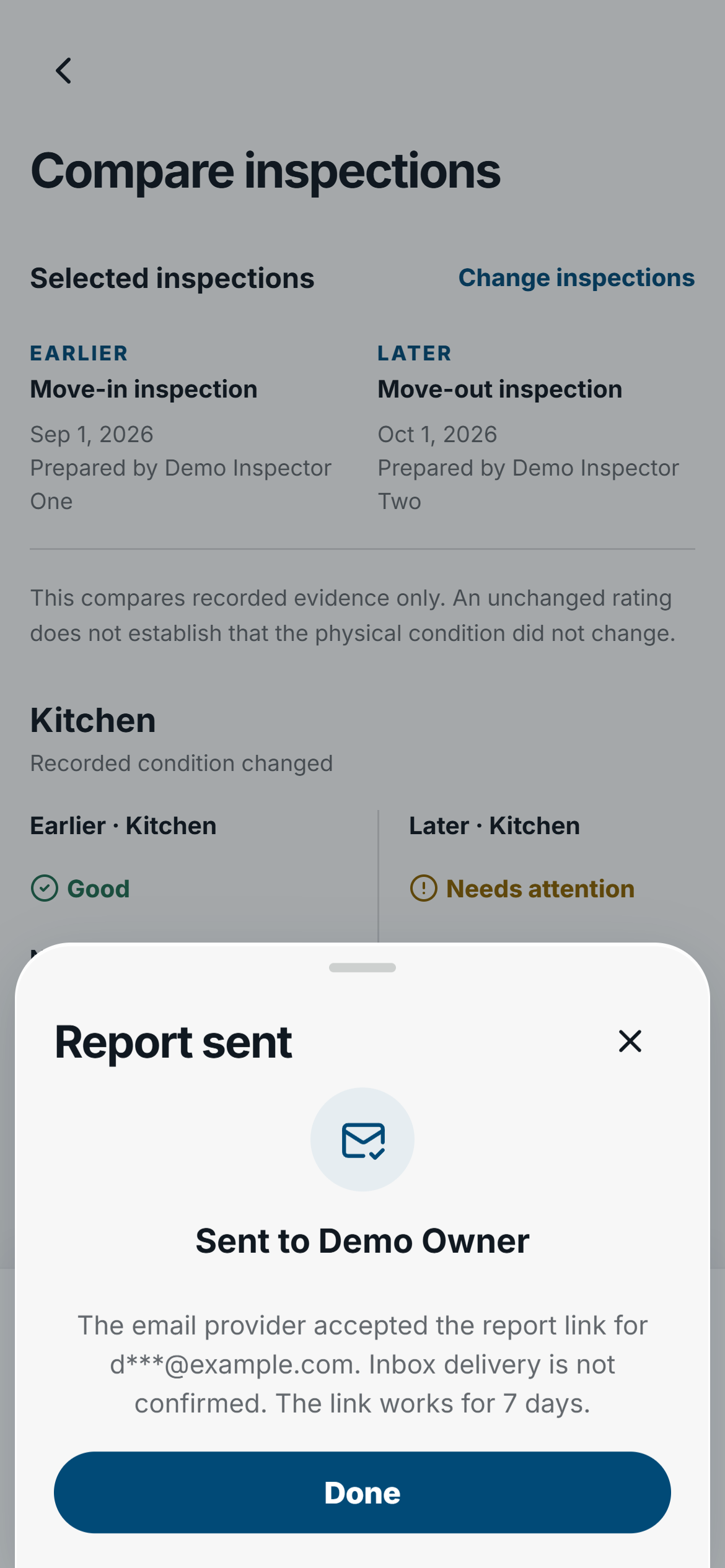
Report sent means the email provider accepted the link. It does not prove inbox delivery, receipt, or reading. If the result is queued, use Check again to recheck the same send rather than start a separate email attempt.
Read the comparison as recorded evidence
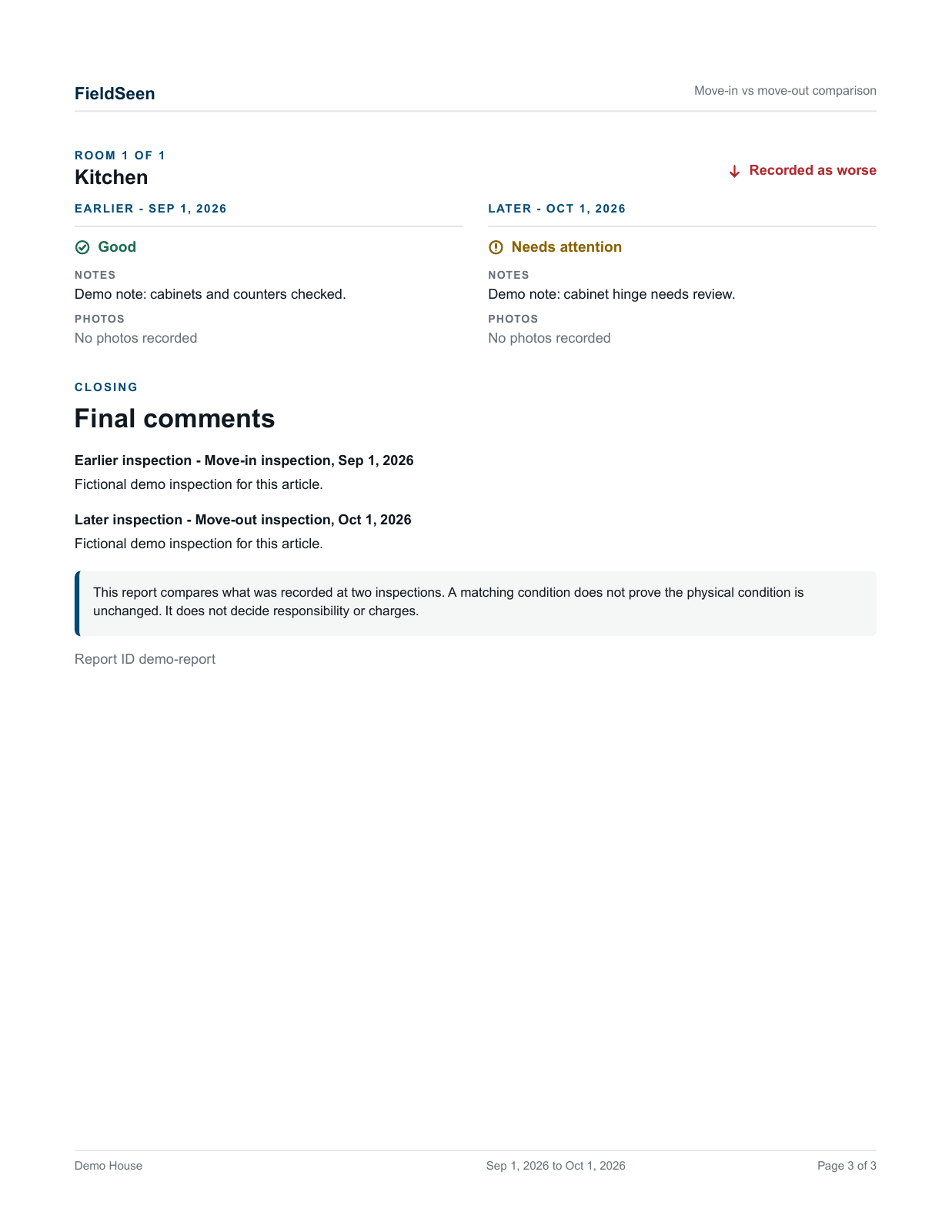
Open the fictional three-page comparison PDF to inspect the cover, summary, and room evidence at full size.
The report presents recorded room conditions, notes, and available supporting evidence from the paired visits. It can include final comments, checklist issues, and signature status. It does not compare every checklist answer. Photo coverage is bounded; a room with more photos than the PDF includes shows the count and directs you to the full inspection report.
A changed rating is a recorded difference to review, not automatic proof of a physical change, damage, cause, liability, or a charge. An unchanged rating does not prove nothing changed. Read the notes and inspect the photo coverage and missing evidence before drawing conclusions.
Our side-by-side comparison walkthrough explains matching and reviewing the two visits. Use the move-in photo guide to prepare useful evidence. You can also find the feature under comparison PDF reports. To create one, open two compatible completed inspections, review the room matches, and select Create PDF report.