
New feature
Send tenants an inspection signing link in FieldSeen

Before you start
- Plan
- Free and Professional
- Works on
- Desktop and phone; tenants sign on any device
- You’ll need
- A completed inspection and the tenant’s email
Getting an inspection acknowledged should be as straightforward as sharing it. With tenant signing links, FieldSeen brings report review, comments, and receipt acknowledgment into one simple flow, giving tenants a convenient way to respond and keeping the signed record with your inspection.
Your tenant can review a completed inspection and sign that they received it from their own device. Send an inspection signing link from FieldSeen, and they can open the report, add a comment, and sign without creating an account.
A tenant signature records receipt of the inspection report, not agreement with its findings. The tenant sees that explanation before signing and can choose to decline. This walkthrough uses entirely fictional demo information and a drawn demo signature in the current product interface.
Signing is available on Free and Professional. Start with a completed inspection that has no tenant signature and no pending signing request. To send a new request after completion, you must own the property in a personal workspace or have the company permissions to view the portfolio and manage tenants. Company owners and admins have those permissions.
Send the link from a completed inspection on desktop
4 steps Desktop
- Open the property and its inspection history.
- Open the completed inspection and find the Signaturescard in the report's right column.
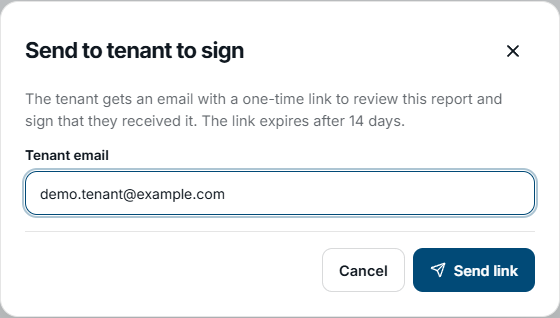
- Select Send to tenant to sign.
- Check or enter the Tenant email, then select Send link. If FieldSeen suggests an email from the tenant records, confirm that it is correct.

FieldSeen confirms that a signing link is on its way to the address you entered and shows Awaiting tenant. The request remains open while the tenant reviews it. A queued or sent email status describes the sending process; it does not prove that the email reached the inbox or that the tenant read it.
Send the link from your phone
3 steps Phone
- Open the property, then open the completed inspection from its history.
- Scroll to Signatures below the report notes and tap Send to tenant to sign.
- Check or enter the Tenant email in the sheet, then tap Send link.
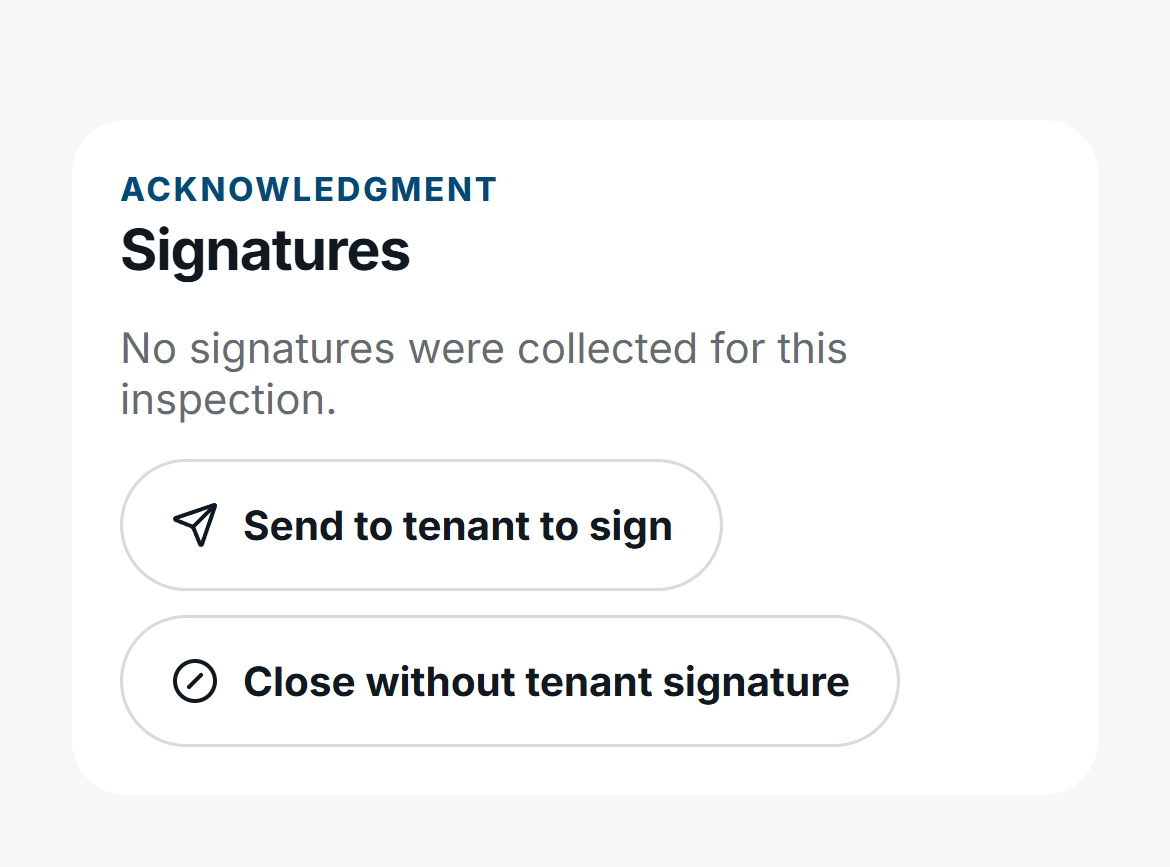
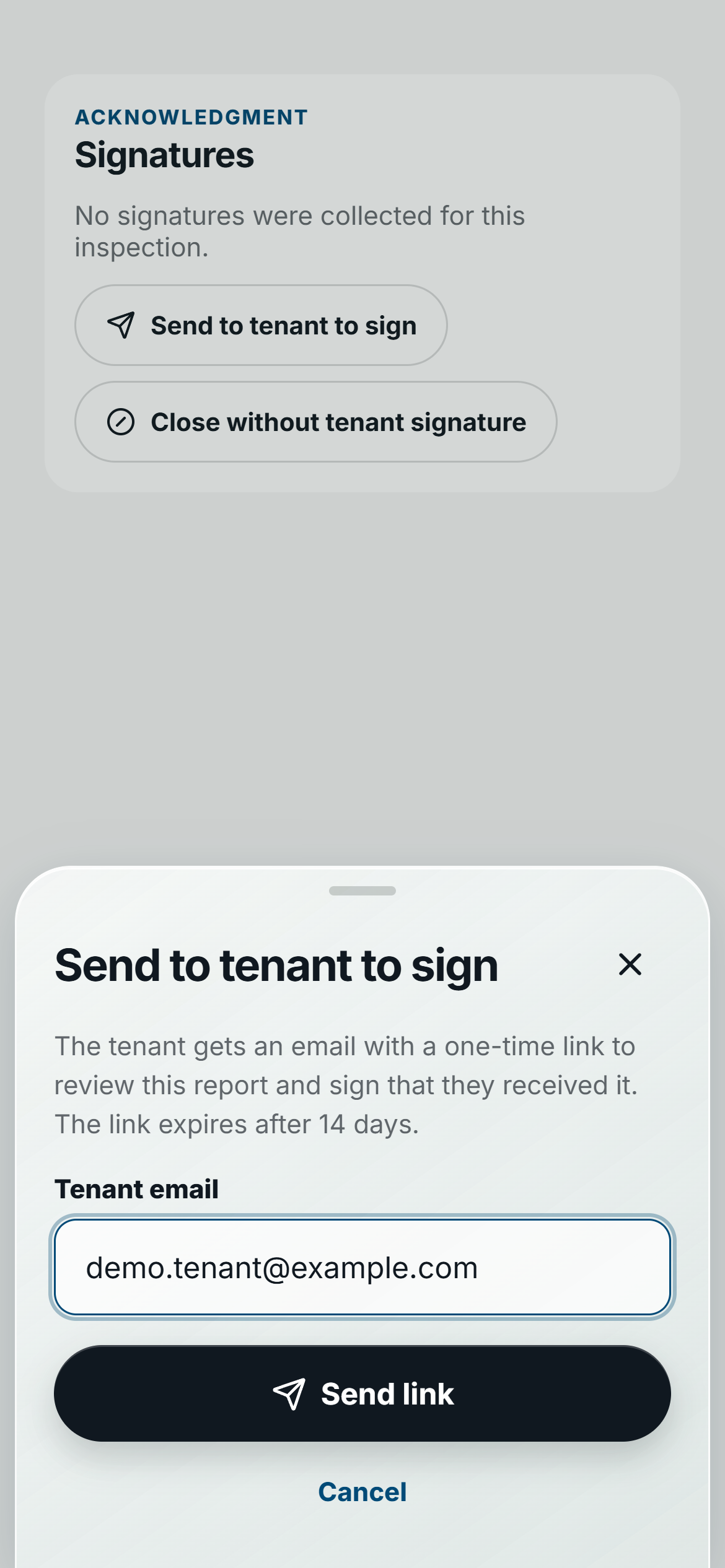
You can also choose Send to tenant to signduring the staff inspection's Signatures step before finalizing. Confirm the tenant's email there. The link is sent when the inspection is completed, so the tenant reviews the finished record.
What your tenant sees
3 steps Tenant
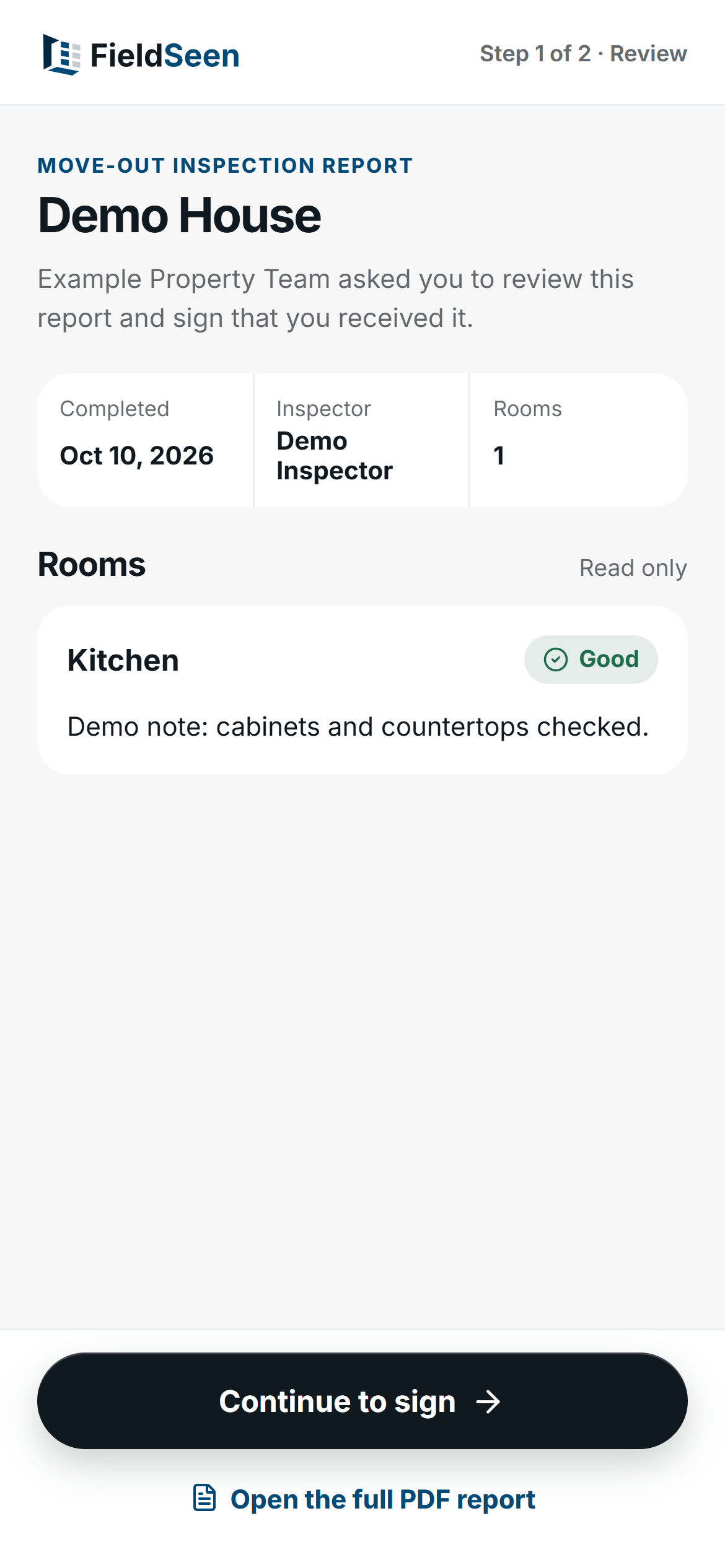
- Open the signing link in the email. No FieldSeen account is required.
- Review the completed report's room conditions, notes, and photos. Use Open the full PDF report for the full document when it is available.
- Select Continue to sign.
Steps 4–6 Tenant
- Read the acknowledgment, check or enter the Full name, and draw in the Signature area with a finger or mouse. Use Clear to redraw.
- Add a Comment if needed, up to 500 characters.
- Select Sign report. A confirmation says the signature was added and the signed report will be emailed to the address the signing link was sent to.
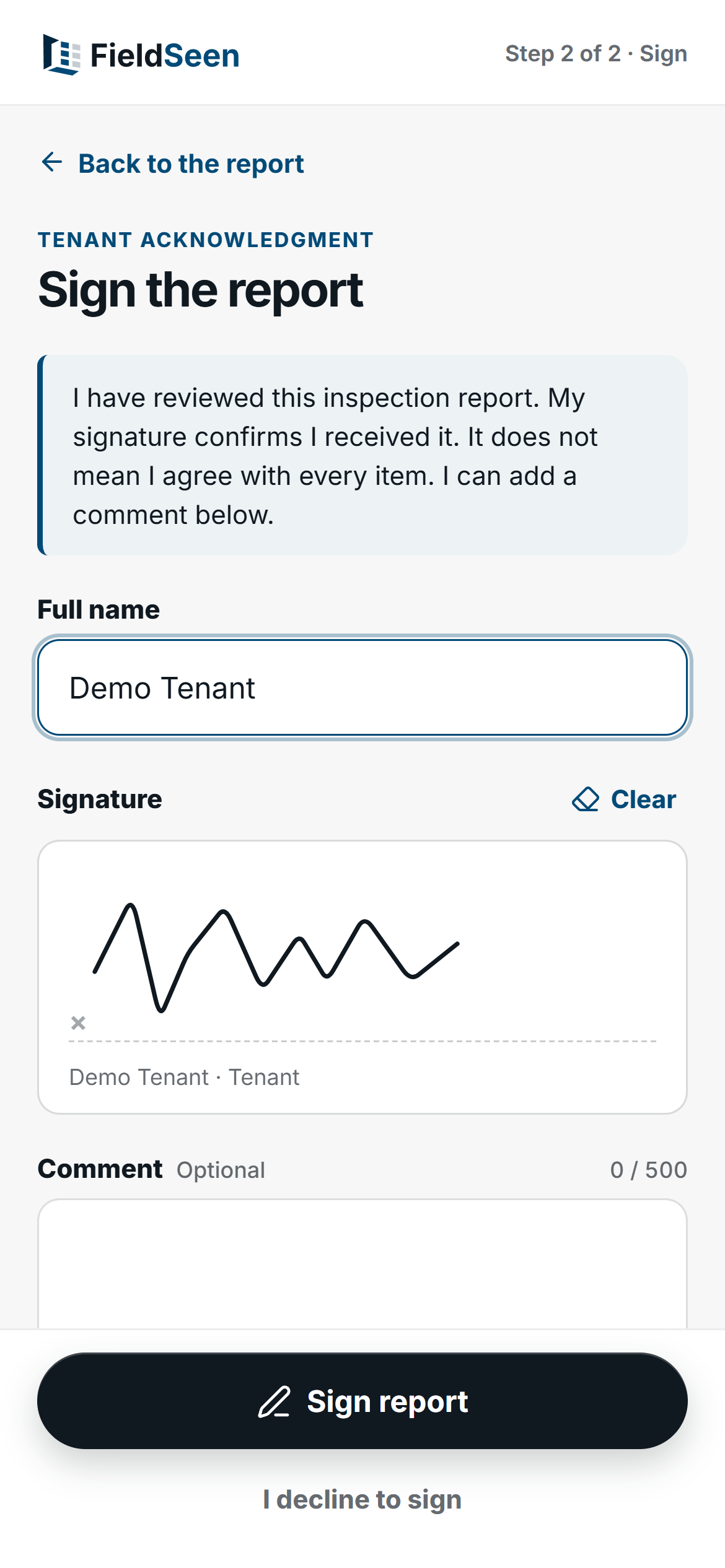
If the tenant does not want to sign, they can select I decline to sign, then confirm with Decline to sign. That records their choice and stops the link from working. The tenant cannot sign afterward using that same link.
Check the result in FieldSeen
Return to the completed inspection's Signatures section. It refreshes the request status and shows Signed after the tenant signs, with their name, signature, signing details, and any comment. The original inspection evidence stays unchanged.
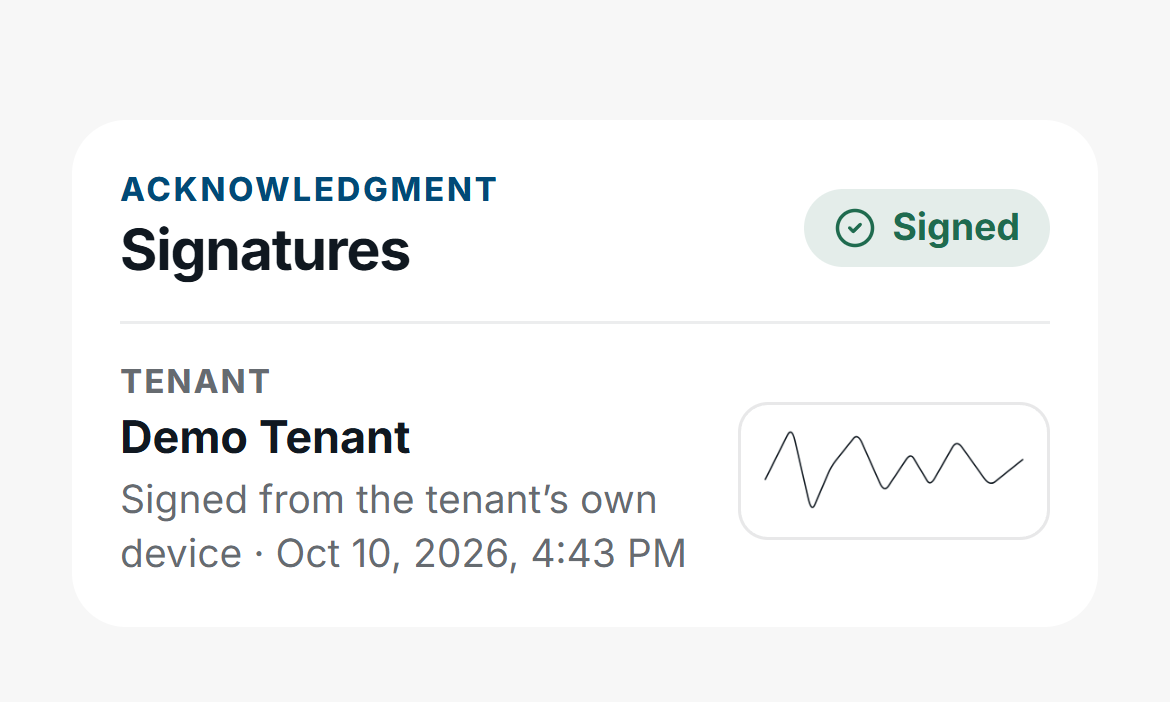
FieldSeen generates a new PDF containing the signature. Once it is ready, FieldSeen queues an email to the tenant with a private link to it. This report-copy link lasts seven days and is separate from the 14-day signing link. The signing confirmation does not promise an immediate download.
Resend or cancel an open request
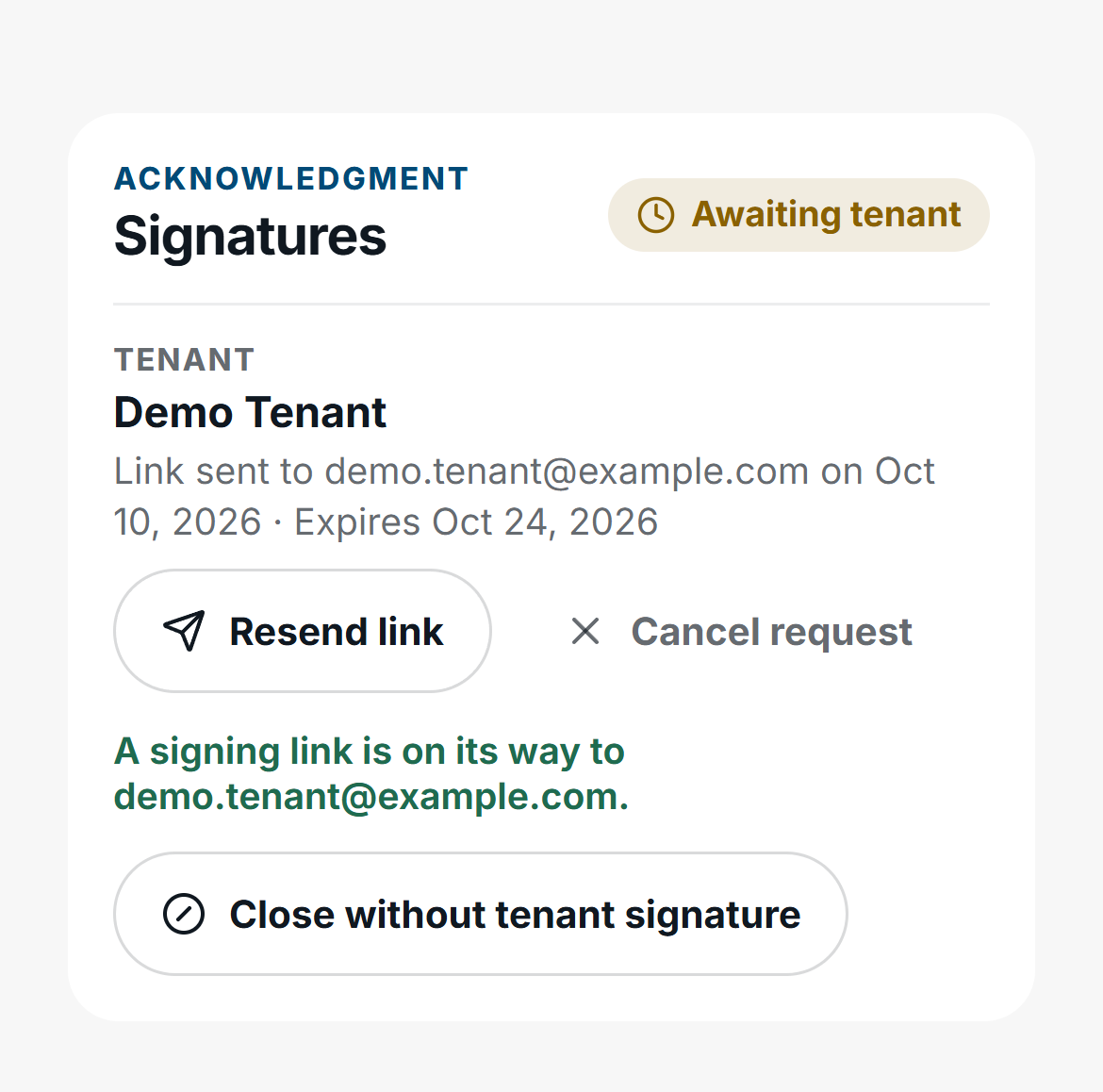
A signing link is single-use and expires after 14 days. For an eligible pending request, select Resend on desktop or Resend link on your phone. Resending sends a new link, starts a new 14-day period, and makes the previous link stop working.
To withdraw a pending request, select Cancel requestand confirm the cancellation. That link stops working. It does not remove a signature already recorded. The original sender can manage an eligible request, as can someone authorized to send signing requests for the property. FieldSeen shows these controls when your permissions and the request's current state allow them.
If you entered the wrong email, cancel the open request and send a new one to the correct address. Keep the signing email private: anyone with an active link can use it to review and acknowledge the report. The link does not independently verify the signer's identity.
For useful records to send, see our move-in photo guide and move-out inspection checklist. You can also find this workflow in the emailed signing link feature overview. To try it, open a completed inspection and go to Signatures.